Changing Blog Appearance
Changing the appearance of your website
To change the appearance of your blog there are thousands of themes to choose from.
To choose a new theme click on the grey arrow to the right of the word "Appearance" on the left of your website editing area.
Now click on "Add New Themes" in the drop down menu.
A new page will now open with lots of tick boxes.
This allows you to choose a specific theme
e.g. choose by color. I recommend only clicking 1 box on this page. To see all themes available don’t click any boxes.
Now click "Find Themes" at the bottom.
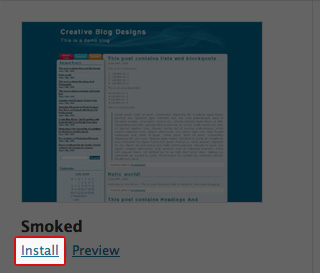
You should now be able to see lots of different themes to choose from.
You can scroll down the page to find one you like and to see more click on the numbers at the bottom to view a new page.
Once you have found the style of theme you like for your website. Click on the "Install" button underneath the chosen theme as shown in the image (left).
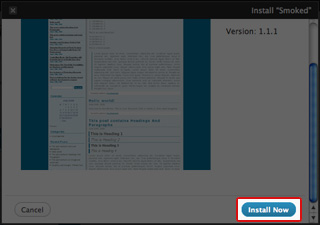
A new window will appear and the screen should grey out.
To update your website to look like this theme click on the blue "Install Now" button.
Note: If you can’t see this in the new window use the side scroll and scroll down to the bottom.
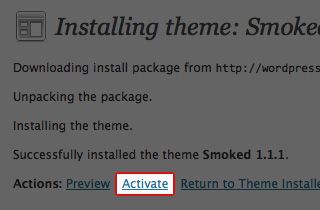
Important!
You should now see a page saying "Installing Theme...." to update your website you must now click "Activate"
Your website will now be updated, and if you ever wish to change the appearance of your website just repeat the above steps.
You should take the time to pick your blog theme and make your site look good. A good looking site is a profitable site.