
Just Host Web Hosting Help
Change Your PHP Version - Dedicated and VPS Hosting
On our VPS or Dedicated hosting service, changing the PHP versions, loading custom Apache mods, and other Apache/PHP customizations are all performed in the Web Host Manager (WHM). To make these changes please follow the instructions below:
- Log into WHM (Web Host Manager). Accessing WHM
If you see the "Feature Showcase" scroll to the bottom and click the Exit to WHM button
- In the search field, in the upper left hand corner, search for EasyApache.
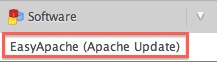
- Scroll down to the bottom and click Start customizing based on profile.

- On the next page, click Next Step without changing the version of Apache (unless you KNOW you need a different version).
- On the next page, choose your PHP version, then click Next Step.
- If necessary, go through the short and exhaustive options lists to enable any needed Apache mods or PHP extensions. After this is done (or if you don't need to enable these), scroll to the bottom and click Save and Build.

- Confirm this choice. The process will start. It will take about 15 minutes or so to recompile, and then Apache will briefly restart (which will result in several seconds of downtime).
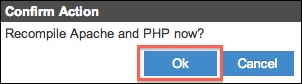
The build process can take about 20 minutes or more. Don't close WHM during this time. After recompiling, Apache will restart with your desired Apache/PHP settings. That takes several seconds.
(Source and more info: http://docs.cpanel.net/twiki/bin/view/EasyApache/WebHome)
 bookmark
 share
share
 E-mail
 Twitter
 Google Bookmarks
 Facebook
 MySpace
 Digg
Digg Reddit
 Delicious
 LinkedIn
 StumbleUpon
Recommended Help Content
This article will explain how to use Easy Apache to recompile Apache. This is useful if you want to change the version of PHP or change other PHP and Apache settings.
Knowledgebase Article
 57,078 views
 tags: apache build compile dedi dedicated easy modules version vps
57,078 views
tags: apache build compile dedi dedicated easy modules version vps
How to change your PHP version in your hosting account
This article will explain how to add a PHP handler to your .htaccess files. This is useful if you want to customize the version of PHP that runs your PHP files.
Related Help Content
How to setup name servers for multiple cPanel accounts.
Knowledgebase Article
155,467 views
tags: accounts custom dedicated multi multiple nameservers server servers
155,467 views
tags: accounts custom dedicated multi multiple nameservers server servers
Many popular website platforms use PHP for rendering their content. It’s common for these sites to have automatic update tools to ensure that they work with the latest version of PHP, however sometimes a theme or plugin for these services may prevent them from updating or may not work with a newer
How do I change my contract length?
How to edit PHP Configuration --- VPS or Dedicated
If you need to transfer or restore a cPanel account for your VPS or Dedicated server, there is a tool within the WHM panel to perform these tasks. This article is about transferring or restoring from another server or restoring after a re-image.
VPS and Dedicated customers with servers running the CentOS 6 operating system will not be able to upgrade cPanel past version 86. The cPanel team will still support CentOS 6 with cPanel 86 until March 31st, 2021.
Knowledgebase Article
5,841 views
tags: centos cpanel dedicated hosting private server upgrade virtual vps
5,841 views
tags: centos cpanel dedicated hosting private server upgrade virtual vps
In the newer versions of PHP, they have included a new directive to control and handle remote includes. We disable this option, by default, which may affect some of your PHP scripts.
Hard refresh after changing the .htaccess