
Just Host Web Hosting Help
Email Account Setup for Addon/Parked Domains
Summary
Creating email accounts for parked or addon domains is exactly the same way you create an email account for your primary domain. When creating the email account in the cPanel you will see a drop-down menu which allows you to choose the desired domain name.
Add a New Email Account
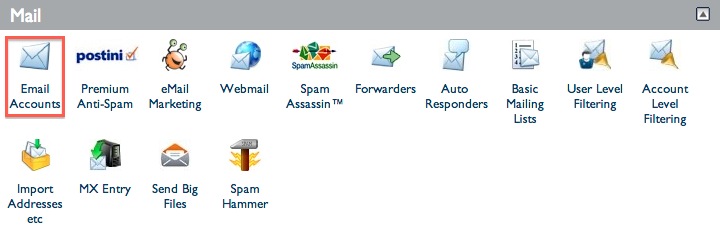
Open the Email Accounts tool, located in the Mail section of the cPanel.
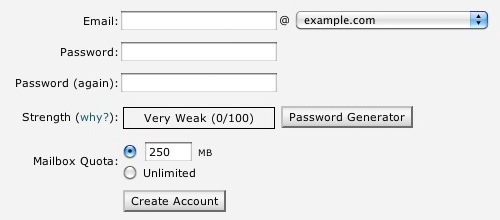
Locate the "Add a New Email Account" box located in the center of the "Email Accounts" main menu.
In the "Email:" text box type the User you would like to create an email address for.
In the "Password:" text box type the Password you would like this User to have.
The "Password Strength:" meter will tell if the password you have entered is strong enough. We highly recommend you use a strong password. For more information on this subject? Please see our Knowledgebase article on (Password Strength)
In the "Password (Again):" text box type the Same Password you used above to confirm that they are the same. If the passwords do not match please carefully retype the password into both boxes again.
The "Mailbox quota (optional):" text box is used to specify the amount of your overall hosting storage that will be allocated for that specific email account. The default that should be listed is 250 MB. You can increase or decrease this number as you desire.
Once the User, Password, and Quota are all accurate; simply click the "Create Account" button.

Note: You can click the "More" button to see the options to Login to Webmail and Configure an Email Client.
 65,526 views
 bookmark
 share
share
 E-mail
 Twitter
 Google Bookmarks
 Facebook
 MySpace
 Digg
Digg Reddit
 Delicious
 LinkedIn
 StumbleUpon
 tags: addon domain email pointed
(updated 399 days ago)
tags: addon domain email pointed
(updated 399 days ago)
Recommended Help Content
Related Help Content
64,441 views
tags: accessible addon directory domain folders hidden htaccess inaccessible primary secondary