
Just Host Web Hosting Help
How to Mount Additional Storage on Dedicated or VPS Servers
Overview
This article will explain how to mount additional storage on a Dedicated or VPS Server.
You can purchase new storage through the Addons tab of your VPS or Dedicated account.
Mounting Storage
- Login to your account at https://my.Justhost.com/
- Click the hosting tab at the top of the account.

The server link. - Underneath the hosting tab, click either performance or server.
- On the left side, click the Disk Management link.
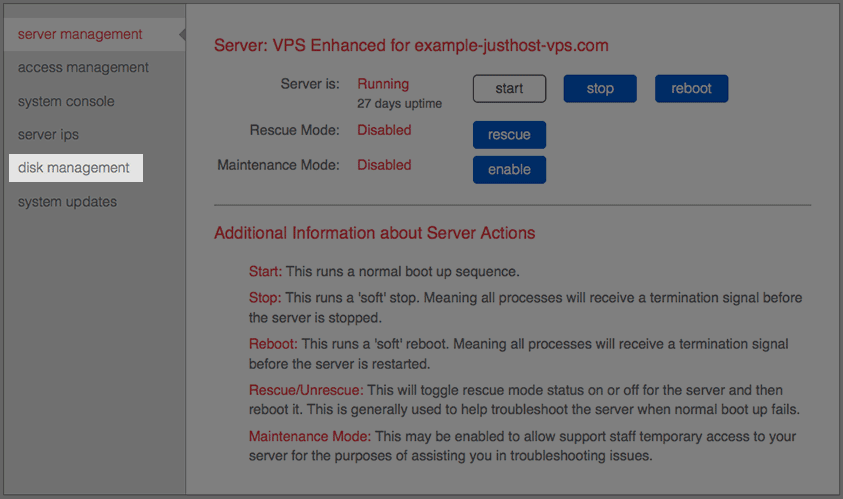
The server management link. - On the Action column, click the change button.
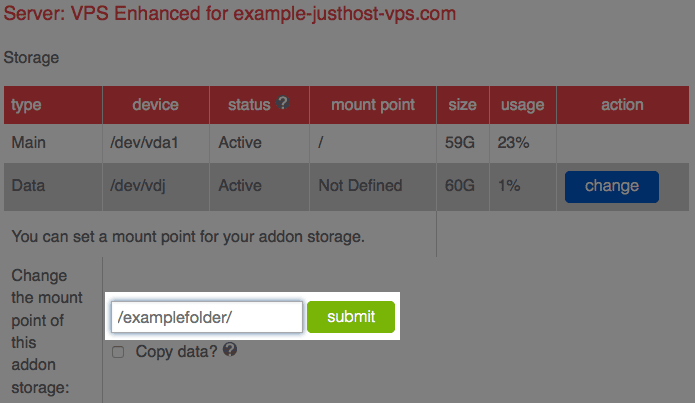
The change button. -
Enter the folder path you would like to mount the storage to.
Note: This will be a folder on your server. Anything stored in that folder will be stored on this drive. - If you want to copy data on that mount, point to the new drive select Copy Data. It is important to also check the option to Remove original data after the copy is complete, as this will allow for the space to copy the data to the new drive.
- Click Submit
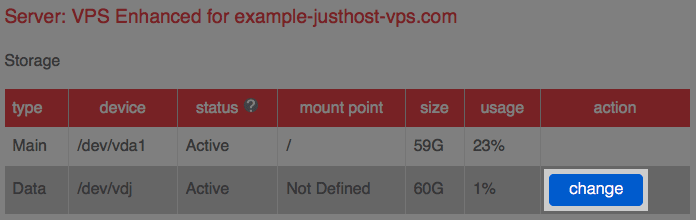
Changing the mount point.
If you chose to copy data, it may take some time to mount the additional storage.
 bookmark
 share
share
 E-mail
 Twitter
 Google Bookmarks
 Facebook
 MySpace
 Digg
Digg Reddit
 Delicious
 LinkedIn
 StumbleUpon
Recommended Help Content
This article will explain some common causes for 500 errors on Dedicated or V.P.S servers.
This article will explain how to create and manage users on Dedicated or VPS servers.
This article will explain how to restart the email related services on a Dedicated or VPS server. This may be useful if you are experiencing trouble with your email.
Related Help Content
This article will explain how to view the email logs on a Dedicated or VPS server. This may be usefull if you are experiencing trouble with your email.
This article will explain how to clear the outbound mail queue on a dedicated or VPS server.
This article will explain how to configure your dedicated or VPS server to use the new (non legacy) backup system.
VPS and Dedicated servers come with all applications necessary to run a standard web and email server. The applications that come with the VPS and Dedicated servers are generally supported as-is by our support technicians.
Knowledgebase Article
 10,870 views
 tags: application configserver csf dedicated django elastisearch ffmpeg java js litespeed mongodb nginx node private python server tomcat virtual vps
10,870 views
tags: application configserver csf dedicated django elastisearch ffmpeg java js litespeed mongodb nginx node private python server tomcat virtual vps
How to setup name servers for multiple cPanel accounts.
Knowledgebase Article
165,471 views
tags: accounts custom dedicated multi multiple nameservers server servers
165,471 views
tags: accounts custom dedicated multi multiple nameservers server servers
This article will explain how to restart your Dedicated or VPS server.
This article will explain how to disable SSLv3 on a VPS or Dedicated server. This can help you avoid issues with vulnerabilities in SSLv3.
If you need to transfer or restore a cPanel account for your VPS or Dedicated server, there is a tool within the WHM panel to perform these tasks. This article is about transferring or restoring from another server or restoring after a re-image.
Knowledgebase Article
11,231 views
tags: backup cpanel dedicated hosting restore server transfer vps
11,231 views
tags: backup cpanel dedicated hosting restore server transfer vps