
Just Host Web Hosting Help
Email Application Setup - Outlook 2010 for Windows
This guide will show step-by-step instructions for setting up E-mail on Outlook 2010 for Windows. While it can be used for other versions of Outlook, some screens and steps might vary.
Adding a new account:
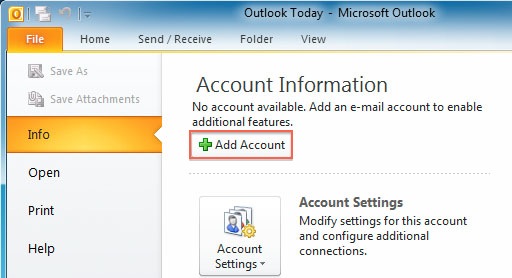
- Select the 'File' menu
- Select Info
- Click the Add Account button
- Choose Manually configure server settings

- Click Next
- Choose Internet E-Mail
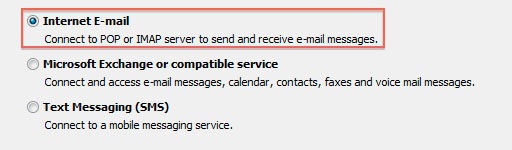
- Click Next
Account Settings
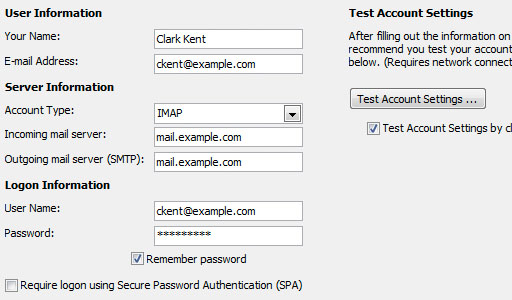
- Enter your name as you want it to appear on your outbound email messages
- Enter your full email address
- Enter your full email address also as the User Name
- Enter your email password
- Your mail server is mail.YourDomain.com, eg mail.example.com (where YourDomain.com is your own domain name)
- The Outgoing Mail Server is the same as your incoming mail server
More Settings
- Click the More Settings button
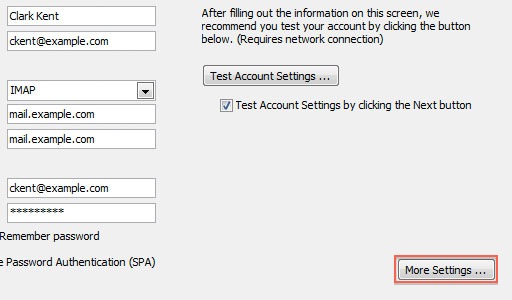
- Click the Outgoing Server tab
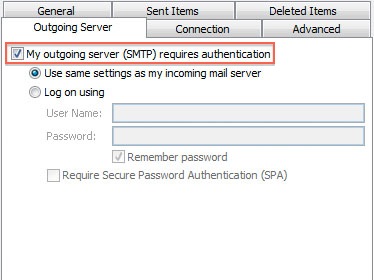
- Check the "My outgoing server (SMTP) requires authentication" checkbox
- Check "use the same settings as your incoming mail server"
- Click the Advanced tab
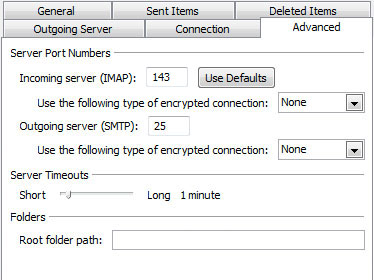
- If you are using POP3 with SSL, click the checkbox and enter 995 as your port. Otherwise leave the default port at 110
- If you are using POP3, you may choose when messages are removed from the server
- If you are using IMAP with SSL, click the checkbox and enter 993 as your port. Otherwise leave the default port at 143
- If you are using SMTP with SSL, click the checkbox and enter 465 as your port. Otherwise change the non-default port to 26
- Click the OK button
Testing Settings
- While on the E-mail Accounts screen, click the Test Account Settings button
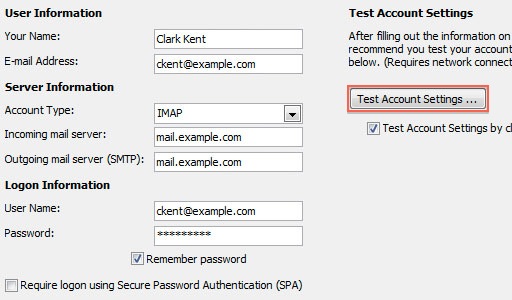
- This will both check your settings and send a test email to yourself to confirm that everything is working. If you receive any errors, please check your configuration
- Click the Close button on the Test Account Settings window
- Click Next on the E-mail Accounts window
- Click the Finish button
Outlook 2010 is now correctly configured to send and receive emails
 bookmark
 share
share
 E-mail
 Twitter
 Google Bookmarks
 Facebook
 MySpace
 Digg
Digg Reddit
 Delicious
 LinkedIn
 StumbleUpon
Recommended Help Content
How to setup an email account using Microsoft Outlook 2007
How to setup an email account using Microsoft Outlook 2013
How to setup an email account in Outlook 2016 for Windows
Related Help Content
Configuring your email client: Outlook Express.
Knowledgebase Article
 394,912 views
 tags: configuration configure email express imap outlook pop setup
394,912 views
tags: configuration configure email express imap outlook pop setup
How to setup your Just Host-hosted email address with an email application.
This article will explain how to setup an email account in the Windows 10 mail application.
How to setup an email account in Outlook 2016 for Mac
Configuring your email client: Outlook 2003
How to setup an email account in Outlook
How to setup an email account using Microsoft Outlook 2011
How do I add my Just Host email account to Outlook 2002?