
Just Host Web Hosting Help
Email Application Setup - Outlook 2011 for macOS
This article will show you how to setup your email account in Outlook 2011.
How to create a new email account
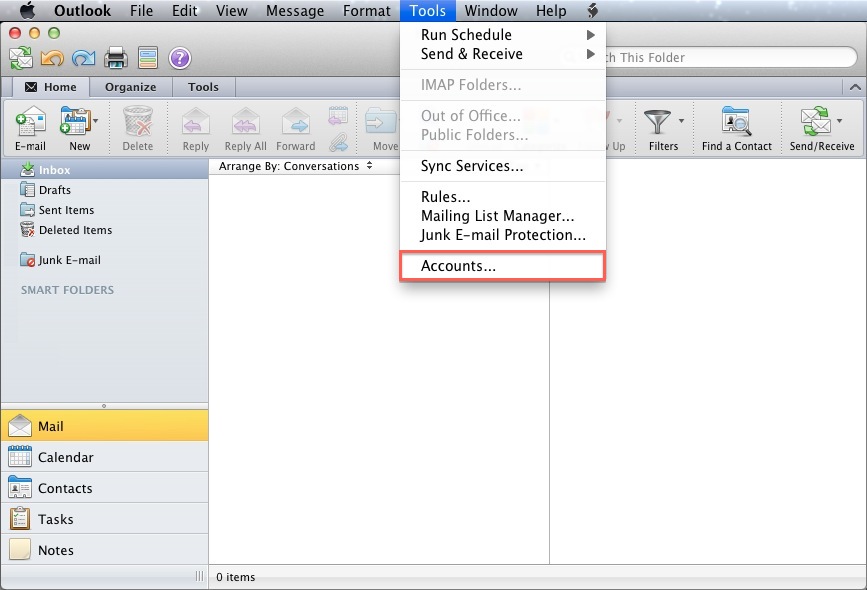
- Open the Tools menu and choose Accounts
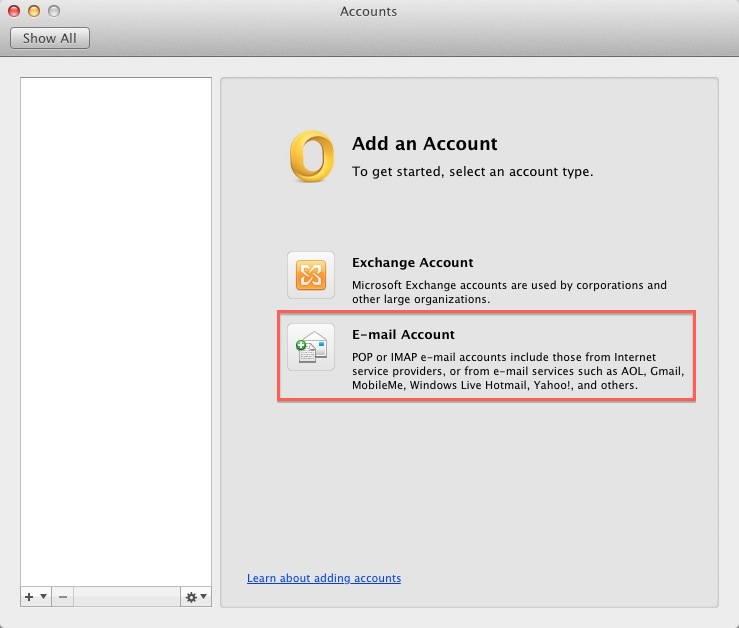
- Click E-mail Account
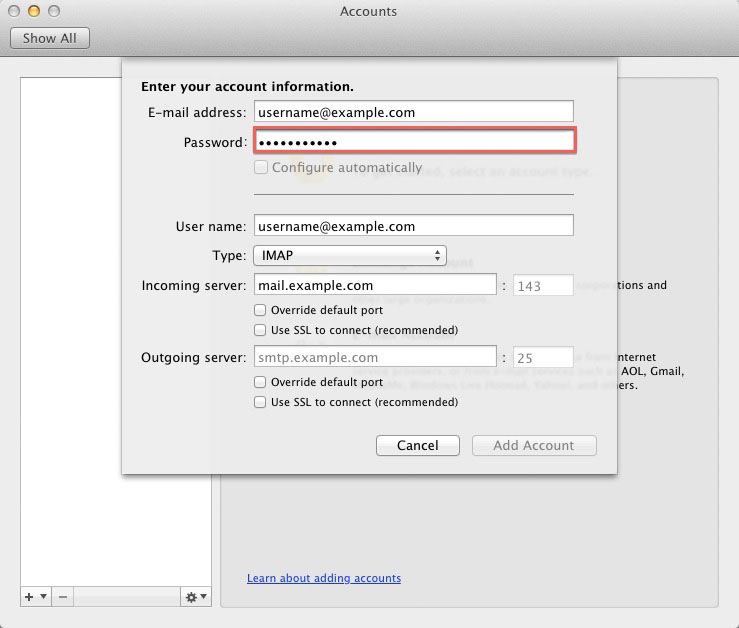
- Enter your full E-mail address

- Enter the password for this E-mail account.
- User Name: Your full email address.
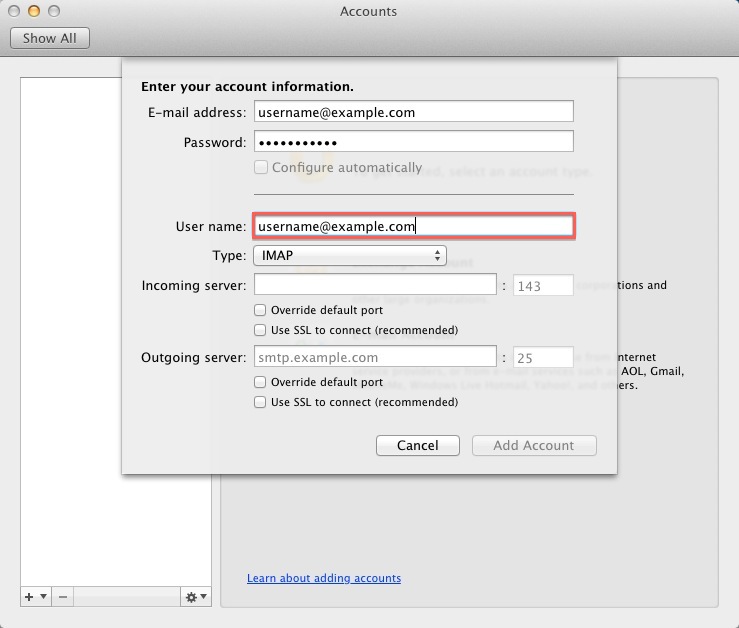
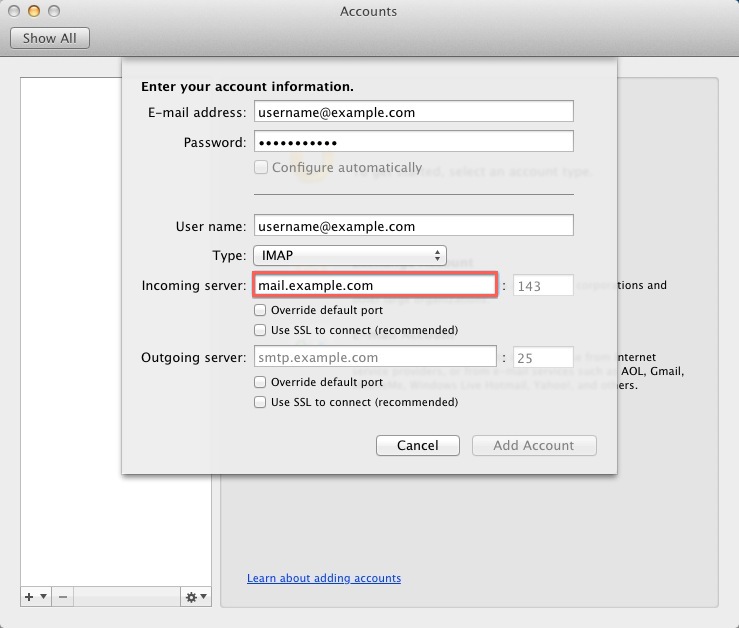
- Incoming server: This is typically your domain name preceded by "mail.", eg. mail.example.com
- Outgoing Server: This is the same as the Incoming server.
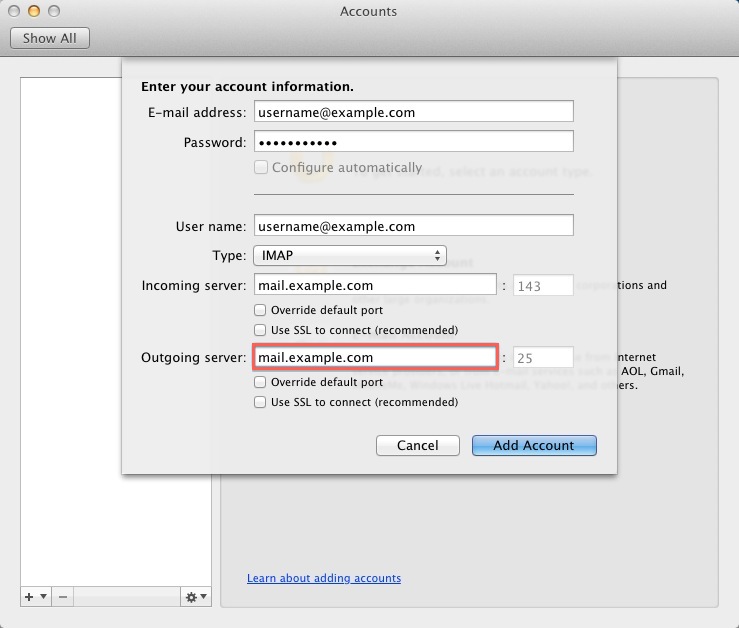
You may need to check the box to "Override default port" and use port 26 instead of the default port 25.
- Click Add Account.
How to enable SMTP Authentication
Once the account has been created you will need to enable SMTP Authentication.
- Open the Tools menu
- Click Accounts
- Click E-mail Account
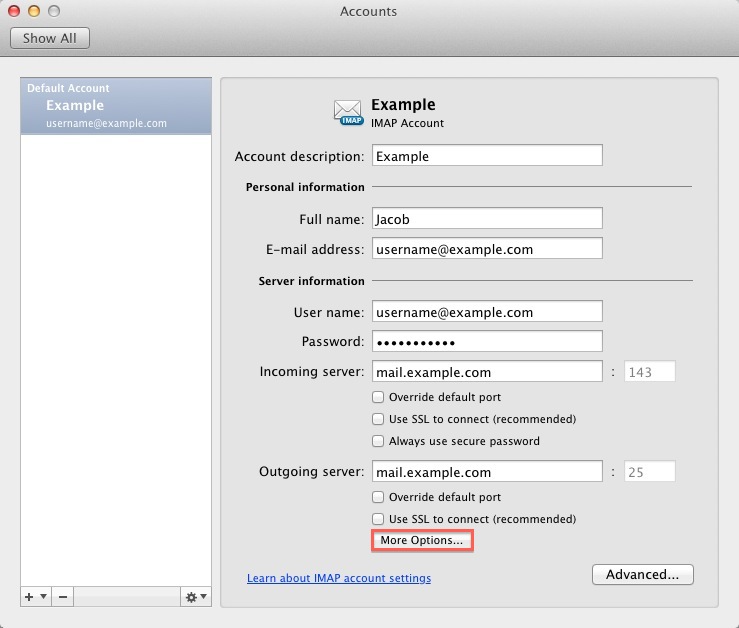
- Click the "More options..." button.
- From the Authentication drop-down menu and choose "Use Incoming Server Info"
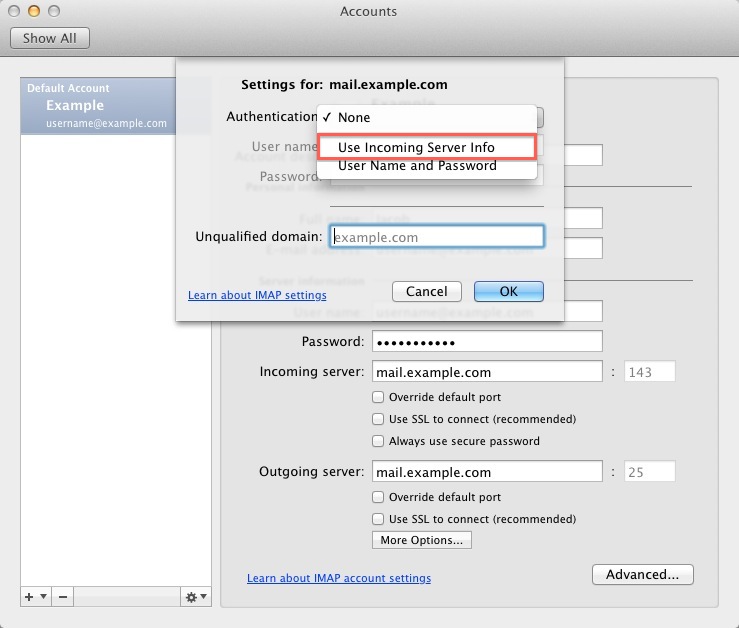
- Click the Ok button.
Outlook 2011 is now correctly configured to send and receive emails.
 bookmark
 share
share
 E-mail
 Twitter
 Google Bookmarks
 Facebook
 MySpace
 Digg
Digg Reddit
 Delicious
 LinkedIn
 StumbleUpon
Recommended Help Content
How to setup an email account in Outlook 2016 for Mac
How to setup an email account in Outlook 2016 for Windows
How to setup your Just Host-hosted email address with an email application.
Related Help Content
How to setup an email account using Microsoft Outlook 2010
Configuring your email client: Outlook Express.
Knowledgebase Article
 393,761 views
 tags: configuration configure email express imap outlook pop setup
393,761 views
tags: configuration configure email express imap outlook pop setup
How to setup an email account using Microsoft Outlook 2007
How to setup an email account in Outlook
How do I add my Just Host email account to Outlook 2002?
How to setup an email account using Microsoft Outlook 2013
This article will explain how to setup an email account in the Windows 10 mail application.
Configuring your email client: Outlook 2003