Browser Configuration
Login Troubleshooting
Confirmation Page Troubleshooting
-
Downloading Your Confirmation
- Netscape
- Internet Explorer
Print Help
- Netscape
- Microsoft Internet Explorer
Scripting / Pop-up Suppresion
Touch Tone Guide
Scottrader FAQ
This site is best viewed with the latest versions of Internet Explorer or Netscape Navigator.
Browser Download Links
If you need to update your current browser, you can follow the links below to download the latest versions.
 Internet Explorer (Windows) |
 Internet Explorer (Macintosh) |
 Netscape Navigator |
 Firefox |
 Mozilla |
 Safari (Mac only) |
 AOL |
 Opera |
Java Runtime Environment
The Java Runtime Environment (JRE) 1.4.2 or above is required to run some Scottrade features. Windows, Linux, and Solaris users may download the JRE from Sun. In order to install the latest version of the Java Runtime Environment (JRE), please follow the instructions below:
Microsoft Windows
Install Java
Note: Your computer must remain connected to the Internet during the
installation.
-
 Click
here to download the Java Runtime Environment
Click
here to download the Java Runtime Environment
-
After clicking the download link, you will be brought to the Java web page that
displays the Free Java Download button.
- Click on the "Free Java Download" button similar to the one shown here.

Recommended Version 6 Update 1 (filesize: ~7.1 MB)
Windows Vista, XP, 2000, and 2003 Server
- Follow the prompts to install Java, agreeing with the license and selecting a typical install.
- When you have successfully downloaded Java for Windows, you should see a task bar pop-up message indicating that Java (TM) Platform, Standard Edition has been installed.
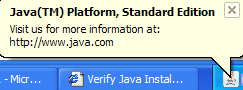
You will then be prompted to verify your installation. Click on the Verify Installation button as shown below. You may also verify by clicking here
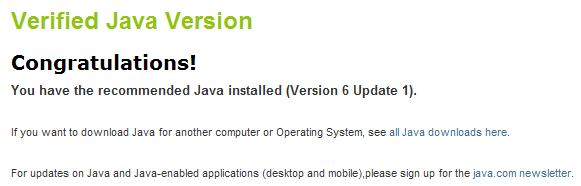
You will then receive a congratulations message upon completing the verification.
Macintosh
Install Java
Downloading the latest Java Runtime Environment (JRE).
Click
here to download the Java Runtime Environment for Macintosh
- Download Java from Apple Site (Macintosh OS X)
- Java has become the de-facto standard language for developing cross-platform applications. Recognizing this, Apple has made Java a core component of Mac OS X. Mac OS X includes the full version of Java 2, Standard Edition — meaning you have the Java Developer Kit (JDK) and the HotSpot virtual machine (VM) without downloading, installing or configuring anything. And because Apple has optimized Java on Mac OS X, Java applications act as first-class citizens on Mac OS X.
First you need to know which browser you are using.
You can find this information by clicking on Help in the toolbar at the top of the screen. Select the last option: About the type of browser you are using. Click on the type of browser you are using below to find out what settings need to be enabled on your browser to have the best Internet experience with our site.
Browsers
AOL |
Internet Explorer |
Netscape |
Other |
Browsers
AOL 9.0
Setting Cache
From the horizontal toolbar at the top of your screen:
- Click on Settings - A box appears called Settings: Essentials.
- Click on Internet [Web] Options. This will launch a window called AOL Internet Properties.
- Click on the General tab.
- Under Temporary Internet Files click on Settings.
- On the Settings page, make sure Every visit to the page is selected.
- Click OK.
- When you return to the General tab, click on Delete Files to clear the cache.
- Click OK.
Setting Cookies
From the horizontal toolbar at the top of your screen:
- Click on Settings. A box appears called Settings: Essentials.
- Click on Internet [Web] Options. This will launch a window called AOL Internet Properties.
- Click on the Privacy tab.
- Click on Advanced.
- Check Override automatic cookie handling.
- Make sure both settings are set to Accept.
- Click OK to exit the window.
Disabling AutoComplete
We recommend that you do not use AutoComplete when it prompts you to save the password. If you save the password using AutoComplete and you change the password under My Account - My Information & Preferences in the site, you may receive an error the next time you try to use your new password. You can change this password in Windows when you receive the error, but it is not a good idea to save any password to your system.
From the horizontal toolbar at the top of your screen:
- Click on Settings. A box appears called Settings: Essentials.
- Click on Internet [Web] Options. This will launch a window called AOL Internet Properties.
- Click on the Content tab at the top.
- Under Personal Information click on the AutoComplete button.
- Make sure all boxes are disabled (unchecked).
- If you had any of the boxes checked, click on the Clear Passwords button.
- Click OK.
Security Settings
- Click on Start.
- Click on Settings.
- Click on Control Panel.
- Click on Internet Options
- Click on the Advanced tab at the top.
- Scroll to the bottom under Security and make sure that Enable Profile Assistant, Use SSL 2.0, and Use SSL 3.0 are all checked.
- Click OK to exit the window.
Scripting and META Refresh Settings
From the horizontal toolbar at the top of your screen:
- Click on Settings. A box appears called Settings: Essentials.
- Click on Internet [Web] Options. This will launch a window called AOL Internet Properties.
- Click on the Security tab.
- Make sure the Internet Globe is highlighted and click on the Custom Level button.
- Scroll down to Miscellaneous.
- Under Allow META Refresh, select Enable.
- Scroll down to Scripting.
- Set all three settings (Active Scripting, Allow Paste Operations via Script, and Scripting of Java Applets) to Enable.
- Click OK and then Yes to the pop-up asking if you are sure you want to make these changes.
Pop-Up Blocker
- Click on Settings and a window appears called Settings: Essentials.
- Click on Pop-Ups.
- Check the box that says Suppress pop-ups from Web sites I visit using AOL software.
- In the box that says Allow Only These Sites (Suppress All Others), Click ADD and type in www.scottrade.com.
Or, you can also set it for specific sites by doing the following:
- When you are accessing any Web page, a menu is available at the bottom of the window to allow pop-ups from that site. You need to click on it and select Allow pop-ups from this site.
**If you enable the Advanced Spam Filter, this could block Stock Alert e-mails and Execution Notification e-mails.
 AOL
6.0, 7.0 & 8.0
AOL
6.0, 7.0 & 8.0
Setting Cache
From the horizontal toolbar at the top of your screen:
- Click on Settings.
- Click on Preferences.
- Go to the column that says Organization.
- Click on Internet Properties (WWW icon).
- Temporary Internet Files is located in the middle of the page.
- Click on Settings.
- Under Check for newer versions of stored pages, select every visit to the page.
- Click OK to exit the window.
Setting Cookies
From the horizontal toolbar at the top of your screen:
- Click on Settings.
- Click on Preferences.
- Go to the column that says Organization.
- Click on Internet Properties (WWW icon).
- Click on the Privacytab.
- Click on Advanced.
- Check Override automatic cookie handling.
- Make sure both settings are set to Accept.
- Click OK at the bottom to exit.
Disabling AutoComplete
We recommend that you do not use AutoComplete when it prompts you to save the password. If you save the password using AutoComplete and you change the password under My Account - My Information & Preferences in the site, you may receive an error the next time you try to use your new password. You can change this password in Windows when you receive the error, but it is not a good idea to save any password to your system.
From the horizontal toolbar at the top of your screen:
- Click on Settings.
- Click on Preferences.
- Go to the column that says Organization.
- Click on Internet Properties (WWW icon).
- Click on the Content tab.
- Under Personal Information, click on the AutoComplete button.
- Make sure all boxes are disabled.
If you had checkmarks in any of the boxes, click on the box to disable them. Then:
- Click on the Clear Forms button.
- Click on the Clear Passwords button.
- Click OK.
Security Settings
In order to check the security settings when using AOL, you will have to load Internet Explorer on top of AOL. AOL 7.0 uses Internet Explorer 6.0 as its browser. To access Internet Explorer, click on Start > Programs > Internet Explorer. When Internet Explorer appears on the front of your screen:
- Click on Tools located in the horizontal toolbar at the top.
- Click on Internet Options.
- Click on the Advanced tab at the top.
Make sure the following items are enabled (other items can be enabled or disabled):
Security Section:
- SSL 3.0
- SSL 2.0
-
Enable Profile Assistant
If you encounter a blank page when you first log in or on any trading pages, please check the following setting:- Click on the Security tab at the top (in Internet Options).
- Click on the Custom Level button.
- Under Allow META Refresh, click Enable.
 Internet Explorer 7.0
We recommend that you do not use AutoComplete when it prompts you to save the password. If you save the password using AutoComplete and you change the password under Customer Service in the site, you will get an error the next time you try to use your new password to enter the site. You can change this password in Windows when you receive the error, but it is not a good idea to save any password to your system.
Disabling AutoComplete
We recommend that you do not use AutoComplete when it prompts you to save the password. If you save the password using AutoComplete and you change the password under Customer Service in the site, you may receive an error the next time you try to use your new password. You can change this password in Windows when you receive the error, but it is not a good idea to save any password to your system.
From the horizontal toolbar at the top of your screen:
- Click on Tools.
- Click on Internet Options.
- Click on the Content tab.
- Under the AutoComplete section click on Settings.
- Make sure all boxes are disabled.
If you had check marks in any of the boxes, click on the box to disable them. Then:
- Click on the General tab.
- Under the Browsing History section click on Delete.
- Under the Form Data section click on Delete Forms.
- Click Yes.
- Under the Passwords section click on Delete Passwords.
- Click Yes.
Setting Cache
From the horizontal toolbar at the top of your screen:
- Click on Tools.
- Click on Internet Options.
- Click on the General tab.
- Browsing History is located in the middle of the page. Click on Delete.
- Under Temporary Internet Files click on Delete Files. Click yes in the box that appears.
- In the Cookies section click on Delete Cookies. Click yes in the box that appears.
- Click Close and return to the general tab.
- Browsing History is located in the middle of the page. Click on Settings.
- Make sure that under Check for newer versions of stored pages that every time I visit the webpage is selected.
- In the Tabs section please click on Settings. In the middle section called when a popup is encountered please select Always open pop-up in a new window.
- Select OK to return to the General tab.
- Click OK again to exit Internet Options.
Enable Cookies
By default, your browser's cookie settings are configured correctly. If you happen to encounter any session issues while browsing, please follow the directions.
From the horizontal toolbar at the top of your screen:
- Click on Tools.
- Click on Internet Options.
- Click on the Privacy tab.
- Click on Advanced button below.
- Check Override automatic cookie handling.
- Uncheck always allow session cookies.
- Make sure both settings are set to Accept.
- Check Always Allow Session Cookies.
- Click OK, at the bottom to exit.
- The bottom section is called Pop-up Blocker Please make sure to Uncheck Turn on Pop-up blocker or configure it for https://trading.scottrade.com
Security Settings
From the horizontal toolbar at the top of your screen:
- Click on Tools.
- Click on Internet Options.
- Click on the Security tab.
- Click on Custom Level button below.
- In the new window that pops up, look at the bottom of the page and make sure the Reset To: window is set to Medium.
- Click on the Reset button.
- Answer Yes when asked if you want to change your Security settings.
- Click OK to exit the Custom Level area.
From the Advanced Tab on Internet Options make sure the following are enabled
- Use HTTP 1.1
- Use HTTP 1.1 through proxy
- SSL 3.0
- SSL 2.0
- SSL 1.0
- TLS1.0
Content Settings
- Click on Tools
- Click on Internet Options
- Click on the Content Tab
- Under Content Advisor, look for either Enable or Disable.
- If you see Enable, leave this area alone as you are finished.
- However, if you see Disable, please click on this button and enter your security password (someone would have had to turn this feature on and set up a password).
- The Content Advisor most often causes problems viewing our login screen and may also kick you out of your account unexpectedly.
Internet Explorer 6.0
We recommend that you do not use AutoComplete when it prompts you to save the password. If you save the password using AutoComplete and you change the password under My Account - My Information & Preferences in the site, you will get an error the next time you try to use your new password to enter the site. You can change this password in Windows when you receive the error, but it is not a good idea to save any password to your system.
Disabling AutoComplete
We recommend that you do not use AutoComplete when it prompts you to save the password. If you save the password using AutoComplete and you change the password under My Account - My Information & Preferences in the site, you may receive an error the next time you try to use your new password. You can change this password in Windows when you receive the error, but it is not a good idea to save any password to your system.
From the horizontal toolbar at the top of your screen:
- Click on Tools.
- Click on Internet Options.
- Click on the Content tab.
- Under Personal Information, click on the AutoComplete button.
- Make sure all boxes are disabled.
If you had check marks in any of the boxes, click on the box to disable them. Then:
- Click on the Clear Forms button.
- Click on the Clear Passwords button.
- Click OK.
Setting Cache
From the horizontal toolbar at the top of your screen:
- Click on Tools.
- Click on Internet Options.
- Click on the General tab.
- Temporary Internet Files is located in the middle of the page. Click on Settings.
- Under Check for newer versions of stored pages, select Every visit to the page.
- Click OK to exit the window.
Enable Cookies
By default, your browser's cookie settings are configured correctly. If you happen to encounter any session issues while browsing, please follow the directions.
From the horizontal toolbar at the top of your screen:
- Click on Tools.
- Click on Internet Options.
- Click on the Privacy tab.
- Click on Advanced.
- Check Override automatic cookie handling.
- Make sure both settings are set to Accept.
- Place a check in front of Always allow session cookies.
- Click OK at the bottom to exit.
Security Settings
Click on the Advanced tab. Make sure the following items are enabled (The other items can be enabled or disabled).
Security Section:
- SSL 3.0
- SSL 2.0
- Profile Assistant
If you encounter a blank page when you first log in or on any of the trading pages, please check the following setting:
- Click on the Security tab at the top (in Internet Options).
- Click on the Custom Level button.
- Under Allow META Refresh, click Enable.
Internet Explorer 5.0/5.5
Certain features of Scottrade's trading web site are known to have compatibility issues with Internet Explorer 5.5/5.0. We recommend upgrading your browser to Internet Explorer 6.0 or higher.
Disabling AutoComplete
We recommend that you do not use AutoComplete when it prompts you to save the password. If you save the password using AutoComplete and you change the password under My Account - My Information & Preferences in the site, you may receive an error the next time you try to use your new password. You can change this password in Windows when you receive the error, but it is not a good idea to save any password to your system.
From the horizontal toolbar at the top of your screen:
- Click on Tools.
- Click on Internet Options.
- Click on the Content tab.
- Under Personal Information, click on the AutoComplete button.
- Make sure all boxes are disabled.
If you had check marks in any of the boxes, click on the box to disable them. Then:
- Click on the Clear Forms button.
- Click on the Clear Passwords button.
- Click OK.
Setting Cache
From the horizontal toolbar at the top of your screen:
- Click on Tools.
- Click on Internet Options.
- Click on the General tab.
- Temporary Internet Files is located in the middle of the page. Click on Settings.
- Under Check for newer versions of stored pages, select Every visit to the page.
- Click OK to exit the window.
Enable Cookies
From the horizontal toolbar at the top of your screen:
- Click on Tools.
- Click on Security.
- Click on Custom Level.
- Scroll down to Cookies.
- Under Allow cookies that are stored on your computer, click on Enable.
- Under Allow per session cookies (not stored), click on Enable.
- Click OK at the bottom to exit.
Security Settings
Click on the Advanced tab. Make sure the following items are enabled (the other items can be enabled or disabled).
Security Section:
- Enable Profile Assistant
- Use Fortezza
- Use PCT 1.0
- Use SSL 2.0
- Use SSL 3.0
Netscape
7.1/7.2
Certain features of Scottrade's trading web site are known to have compatibility issues with Netscape 6.0. We recommend upgrading your browser to Netscape 7.2 or higher.
Make sure you have the full version of Netscape installed. The recommended download will not work with streaming quotes.
Enabling Java
- Click on Edit.
- Click on Preferences.
- In the white category window, click on Advanced so that the directory is expanded.
- Under Advanced, check Enable Java and Enable native object scripting.
- Under Scripts and Plug-Ins check Enable Java Script for Navigator.
Setting/Clearing Cache
- Click on Edit.
- Click on Preferences.
- In the white category window, click on Advanced so that the directory is expanded.
- Click on Cache.
- Click on Clear Cache.
- Make sure where it says Compare the page in cache to page in network, click Every time I view the page.
Proxies and Networking
- Click on Edit.
- Click on Preferences.
- In the white category window, click on Advanced so that the directory is expanded.
- Click on Proxies. Place a dot in Direct Connection to the Internet.
- Click on HTTP Networking.
- Under Direct Connection Options check Use HTTP 1.1.
- Under Proxy Connection Options check Use HTTP 1.1.
Privacy/Security/Pop-Ups
- Click on Edit.
- Click on Preferences.
- Expand the Privacy and Security menu.
- Click on Cookies.
- Select Enable All Cookies.
- Click on Pop-up Windows.
- Uncheck Block unrequested pop-up windows or Allowing pop-ups from certain Web sites. After you have enabled pop-up blocking, you can still allow specific sites to display pop-ups. Browse to the Web site, and then from the Tools menu, choose Pop-up Manager, and then choose Allow Pop-ups from this site or check Block unrequested pop-up windows. Click on the button that says Allowed Sites and enter the name of the site.
Security
Make sure the following are enabled:
- SSL2
- SSL3
- TLS
Netscape
7.0
Certain features of Scottrade's trading web site are known to have compatibility issues with Netscape 7.0. We recommend upgrading your browser to Netscape 7.2 or higher.
Note: When downloading a new browser version, please download
the complete/full version and not the typical or recommended version.
By default, Netscape is set correctly for the Scottrade site.
Cookies:
- Click on Edit.
- Click on Preferences.
- Expand Privacy & Security in the Category list.
- Select Enable all cookies.
- Click OK.
Web Passwords:
We recommend that you do not use AutoComplete when it prompts you to save the password. If you save the password using AutoComplete and you change the password under My Account - My Information & Preferences in the site, you may receive an error the next time you try to use your new password. You can change this password in Windows when you receive the error, but it is not a good idea to save any password to your system.
- Click on Edit.
- Click on Preferences.
- Expand Privacy & Security in the Category list.
- Click on Passwords.
- Uncheck Remember passwords.
- Click OK.
Security:
Make sure the following are enabled:
- Click on Edit.
- Click on Preferences.
- Expand Privacy & Security in the Category list.
- Click on SSL.
- On the right, check the following: Enable SSL version 2, Enable SSL version 3, and Enable TLS.
- Click OK.
Java Settings:
- Click on Edit.
- Click on Preferences.
- Click on Advanced.
- On the right, check Enable Java and XSLT.
- Click OK.
Cache:
- Click on Edit.
- Click on Preferences.
- Click on Advanced.
- Click on Cache.
- On the right, select Every time I view the page.
- To clear the cache, click on Clear Memory Cache and then Clear Disk Cache.
- Click OK.
Netscape
6.0
Certain features of Scottrade's trading web site are known to have compatibility issues with Netscape 6.0. We recommend upgrading your browser to Netscape 7.2 or higher.
Setting Cache
From the horizontal toolbar at the top of your screen:
- Click Edit.
- Click Preferences.
- Click on the arrow in the front of Advanced.
- Click on Cache.
- On the right, under Compare the page in the cache to the page on the network, enable Every time I view the page.
- Click OK.
Setting Cookies
From the horizontal toolbar at the top of your screen:
- Click Edit.
- Click Preferences.
- In the left menu, double-click on Privacy and Security. This will display a menu below it.
- Click Cookies.
- On the right, make sure that Enable all cookies is selected.
- Click OK at the bottom to exit.
Setting Java
From the horizontal toolbar at the top of your Netscape screen:
- Click Edit.
- Click Preferences.
- Click Advanced.
- On the right, under Enable features that help interpret Web pages, select both Enable Java and Enable Javascript for Navigator.
- Click OK.
Disabling AutoComplete
We recommend that you do not use AutoComplete when it prompts you to save the password. If you save the password using AutoComplete and you change the password under My Account - My Information & Preferences in the site, you may receive an error the next time you try to use your new password. You can change this password in Windows when you receive the error, but it is not a good idea to save any password to your system.
From the horizontal toolbar at the top of your screen:
- Click Edit.
- Click Preferences.
- Click on the arrow in the front of Privacy & Security.
- Click Web Passwords.
-
Disable Remember passwords for sites that require me to log in.
If passwords have already been saved, then do the following:
- Click View Stored Passwords.
- Click Remove All.
- Click OK.
Security Settings
From the horizontal toolbar at the top of your screen:
- Click Edit.
- Click Preferences.
- Click on the arrow in front of Privacy & Security.
- Click on SSL.
-
On the right, under SSL Protocol Versions select the
following:
- Enable SSL Version 2
- Enable SSL Version 3
- Enable TLS
- Click OK.
Macintosh with Internet Explorer (Version 5.2): with OS X
Certain features of Scottrade's trading web site are known to have compatibility issues with Internet Explorer 5.2 and 5.1 for Macintosh.
- Open Internet Explorer.
- Click on Explorer on the menu bar and select Preferences.
- In the left menu, under Web Browser, click on Web Content.
- On the right, under Active Content, enable Enable Scripting and Enable Plug-ins.
- In the left menu, click on Security Zones. On the right, click on Custom and then click on Settings.
- On this page under Scripting, enable Execute Scripts and Execute Scriptlets. Then click OK.
- In the left menu click Advanced.
- On the right, under Cache, enable Once Per Session and click on Empty Now to clear the cache.
- In the left menu, under Receiving Files, click on Cookies. When Receiving Cookies should be set to Never Ask.
Macintosh with Internet Explorer (Version 5.1): with OS X
Certain features of Scottrade's trading web site are known to have compatibility issues with Internet Explorer 5.2 and 5.1 for Macintosh.
- Open Internet Explorer.
- Click Edit and then click Preferences at the top of the screen.
- In the left menu click on Web Content.
- On the right, under Active Content, enable Enable Scripting and Enable Plug-ins.
- In the left menu, click on Java and enable Enable Java (Apple MRJ).
- In the left menu, click on Security Zones. On the right, click on Custom and then click the Settings button.
- On the next page, under Scripting, make sure Execute Scripts and Execute Scriptlets are both set to enable. Click OK.
- In the left menu, click on Advanced.
- On the right, under Cache, Once Per Session should be enabled. Click on the Empty Now button to clear the cache.
- In the left menu, click on Cookies. When Receiving Cookies should be set to Never Ask.
Firefox
1.0 (MOZILLA) - for Mac OS X
Cache
- Click on Firefox.
- Click on Preferences.
- In the Options box in the left-hand column, Click on Privacy.
- In the right column, scroll down until you see Cache. Click on the Clear button.
Cookies
- Click on Firefox.
- Click on Preferences.
- In the Options box in the left-hand column, click on Privacy.
- In the right column, scroll down until you see Cookies. Click on Clear. Make sure the Enable Cookies box is checked. You may need to click on the arrow next to Cookies to display the enable option.
AutoComplete
We recommend that you do not use AutoComplete when it prompts you to save the password. If you save the password using AutoComplete and you change the password under My Account - My Information & Preferences in the site, you may receive an error the next time you try to use your new password. You can change this password in Windows when you receive the error, but it is not a good idea to save any password to your system.
- Click on Firefox.
- Click on Preferences.
- In the Options box, in the left-hand column, click on Privacy.
- Under Saved Form Information, click on Clear and make sure the box that says Save Information is unchecked.
- Under Saved Passwords, click on Clear and make sure the box that says Remember Passwords is unchecked.
Security
- Click on Firefox.
- Click on Preferences.
- In the Options box, in the left hand column, click on Advanced.
- On the right side under Security check SSL 2.0 and SSL 3.0.
Pop-up Blocker & Java
- Click on Firefox.
- Click on Preferences.
- In the Options box, in the left hand column, click on Web Features.
- On the left-hand menu, check Block Pop-up Windows. Click on Add Site and add www.scottrade.com and www.scottsave.com.
- Make sure Enable Java and Enable Javascript are checked.
- Click OK.
Safari
Setting Pop-up Windows
- Click on the Safari Menu at the top.
- Uncheck Block Pop-up Windows.
Clearing Cache
- Click on the Safari Menu at the top.
- Click on Empty Cache.
- A window will appear that asks "Are you sure you want to empty the cache?" Click Empty.
Setting Cookies
- Click on the Safari Menu at the top.
- Click on Preferences.
- Click on the Security icon at the top.
- To the right of Accept Cookies, enable Always or Only from sites you navigate to.
Enabling Java
- Click on the Safari Menu at the top.
- Click on Preferences.
- Click on the Security icon at the top.
-
Check the following settings:
- Enable plug-ins
- Enable Java
- Enable Javascript
Opera
7.54
- Open the Opera browser.
- Click on Tools.
- Click on Quick Preferences.
- Click on Open Pop-ups in the Background.
- Make sure Enable Java is checked.
- Make sure Enable Plug-ins is checked.
- Make sure Enable Javascript is checked.
- Make sure Enable Cookies is checked.
- Click on Tools.
- Click on Preferences.
- Under Network, select History and Cache and select Clear for Typed in Addresses, Visited Addresses and Disk Cache.
- Check Empty on exit.
Select Privacy
- Enable Cookies.
- Click Accept All Cookies from Normal and Third Party.
- Select Apply.
Select Security
- Select Security Protocols.
- Enable SSL2 and SSL3.
Mozilla
version 1.7.5
From the horizontal toolbar at the top of your screen:
- Click Edit.
- Click Preferences.
- Go to the Category section.
- Click on Privacy and Security (double-click to expand).
- Cookies - Make sure Enable all cookies is checked.
- Images - Make sure to Accept all images.
- Pop-up Windows - Uncheck Block unrequested pop-up windows or Allowing pop-ups from certain Web sites. After you've enabled pop-up blocking, you can still allow specific sites to display pop-ups. Browse to the Web site, and then from the Tools menu, choose Pop-up Manager, and then choose Allow Pop-ups From This Site.
- Forms - Uncheck Save Form Data From Web Pages When Completing Forms (this is similar to disabling auto-complete).
- Passwords - Under the Password Manager make sure that Remember Passwords is unchecked.
- SSL - Under SSL Protocol Versions, make sure that SSL - version 2 and SSL - version 3 are enabled. The SSL warnings are already defaulted and should be left alone.
- The remainder of the settings should be left alone.
- Click on Advanced (double-click to expand).
- Make sure Enable Java is checked.
- Under Scripts and Plug-ins, make sure Enable Javascript for Navigator is checked.
- Cache - Where there is a choice at the bottom that says Compare the Page in the Cache to the Page on the Network, please make sure Every time I view the page is checked.
- Under HTTP Networking make sure that Use HTTP 1.1 is chosen and Enable Persistent Connections is checked.
- Under System, if Mozilla is your primary browser the section that says Windows Should Use Mozilla To Open These File Types has HTML, JPEG, GIF, and BMP checked. The lower box should have the following items checked: HTTP, HTTPS, and FTP.
Firefox
2.0 (Mozilla) for Windows
Download Firefox 2.0 (Mozilla):
- Click on the link http://www.mozilla.com.
- On the main page at the top left hand corner click on "Free Download".
- In the box that pops up next click the "Save" option and save the file to your desktop.
- Once the file has downloaded to the desktop, minimize the current window and on the desktop double click on the icon "Firefox Setup" .
- Click "Next", and on the window that pops up accept the terms of the License Agreement.
- Once the next window pops up select the "Typical" installation option and click "Next" throughout the rest of the installation.
Cache
- Click on Tools.
- Click on Options.
- Click on PRIVACY along the top of the options window.
- Under the Private Data section click on SETTINGS. A new window will open.
- Make sure everything is checked EXCEPT saved passwords and then click OK.
- Under the settings button click CLEAR NOW. Then in the new box click CLEAR PRIVATE DATA NOW.
Cookies
- Click on Tools.
- Click on Options.
- Click on PRIVACY along the top of the options window.
- Under the Cookies section, make sure there is a checkmark next to ACCEPT COOKIES FROM SITES.
- Where it says keep until, make sure it says I CLOSE FIREFOX.
Autocomplete
We recommend that you do not use AutoComplete when it prompts you to save the password. If you save the password using AutoComplete and you change the password under My Account - My Information & Preferences in the site, you may receive an error the next time you try to use your new password. You can change this password in Windows when you receive the error, but it is not a good idea to save any password to your system.
- Click on Tools.
- Click on Options.
- Click on PRIVACY along the top of the options window.
- Under the HISTORY section make sure remember what I enter in forms and search bar is UNCHECKED.
Security
- Click on Tools.
- Click on Options.
- In the Options Box, in the left-hand column, click on Advanced.
- On the right side under Security, make sure SSL 2.0 and SSL 3.0 are checked.
Pop-up Blocker & Java
- Click on Tools.
- Click on Options.
- In the Options box, in the left-hand column, Click on Web Features.
- Make sure Block Pop-up Windows is checked, then click on Add Site and add www.scottrade.com and www.scottsave.com.
- Make sure Enable Java and Enable Javascript is checked.
- Click OK.
Firefox
1.0 (Mozilla) for Windows
Cache
- Click on Tools.
- Click on Options.
- In the Options box in the left-hand column, Click on Privacy.
- In the right column, scroll down until you see Cache. Click on the Clear button.
Cookies
- Click on Tools.
- Click on Options.
- In the Options box in the left hand column, click on Privacy.
- In the right column, scroll down until you see Cookies. Click on Clear, and make sure the Enable Cookies box is checked.
- Here, you can also set your Exceptions to allow or block sites.
Autocomplete
We recommend that you do not use AutoComplete when it prompts you to save the password. If you save the password using AutoComplete and you change the password under My Account - My Information & Preferences in the site, you may receive an error the next time you try to use your new password. You can change this password in Windows when you receive the error, but it is not a good idea to save any password to your system.
- Click on Tools.
- Click on Options.
- In the Options box, in the left-hand column, click on Privacy.
- Under Saved Form Information, click on Clear and make sure the box that says Save Information is unchecked.
- Under Saved Passwords, click on Clear and make sure the box that says Remember Passwords is unchecked.
Security
- Click on Tools.
- Click on Options.
- In the Options Box, in the left-hand column, click on Advanced.
- On the right side under Security, make sure SSL 2.0 and SSL 3.0 are checked.
Pop-up Blocker & Java
- Click on Tools.
- Click on Options.
- In the Options box, in the left-hand column, Click on Web Features.
- Make sure Block Pop-up Windows is checked, then click on Add Site and add www.scottrade.com and www.scottsave.com.
- Make sure Enable Java and Enable Javascript is checked.
- Click OK.
Do not try to access our site by using a bookmark. We are constantly upgrading our site and bookmarks may inhibit your activity within our site or the ability to access our site. You should access our site by typing in the address: www.scottrade.com. After you have entered your account number and password, you may experience a waiting period before the page is completely loaded. You will notice activity (spinning, shooting stars) in your browser icon while this is happening. If you try to click on one of the options on the left-hand menu before the page is finished loading, you may receive a Session Expired message.
If you receive a message that says Certificate Expired, check the expiration date on the certificate.
- If the date is 12-31-99, you will need to upgrade your browser. The root certificates on Netscape versions 4.05 and earlier, and on Internet Explorer 4.01 with service pack 1 and earlier, have expired. These are set in the browser by Netscape and Microsoft. You can upgrade your browser by going to the download sites: http://www.microsoft.com/ie/default.htm or http://www.netscape.com/download.
- If the date of expiration has not been reached yet, make sure the date on your computer is correct. To check this, double-click on the time displayed at the bottom right-hand corner of your screen. Correct the date if needed and click OK.
- If the date is expired, please contact support and provide your account number and the date of expiration on the certificate.
Jump to specific browser information:

To access the Scottrade Web site, Scottrader, and ScottradeELITE with your Directway satellite Internet connection, you must enter exception settings in your Internet Explorer. Please follow the steps provided below to adjust your LAN settings.
- Open Internet Explorer.
- Click the Tools Menu.
- Click Internet Options.
- Click the Connections tab.
- Click the LAN Settings button.
- Click on the Advanced button.
- On the bottom where it says Exceptions, enter the following in the field below: 208.219.220.; 12.144.145.; 172.28.141.
- Click OK to apply the changes.
Using
America Online
If you are using AOL, and you are getting the message Page cannot be displayed after you click on the login button on the home page, make sure your Parental Controls are set correctly. If this is not set correctly, you will have trouble accessing any secure pages using secure socket layers. To set this correctly, follow these instructions:
- Click on My AOL in the toolbar at the top of your screen.
- Click on Parental Controls (Note: You have to be online to access this function).
- At the bottom of the Parental Controls box, click on Set Parental Controls.
- Click on the box in front of Web Control.
- Enable Access all Web sites by clicking in the circle in front of this line.
- Click Save.
You should use Microsoft Internet Explorer 5.0 or higher or Netscape 6.0 with 128-bit cipher strength on top of AOL to access the Web site and Scottrader.
If you are using AOL 5.0 or an earlier version, you may be getting an error message that says Internet Explorer cannot find the site (or cannot open) http://www.scottrade.com.... You will need to upgrade the browser for AOL. If you are using a 32-bit version of AOL, go to Keyword and type in 128browser. Choose to download Internet Explorer 6.0. This will take approximately 30 to 40 minutes.
If you are getting a message that says Directory Listing Denied or You are not authorized to view this page, you may have pop-up suppression enabled. The newest version of AOL (as well as other providers) comes with pop-up suppression software. To disable pop-up suppression for our site:
- Click Settings.
- Click Preferences
- Scroll down to Pop-ups.
- Remove the check mark next to Suppress pop-ups from Web sites I visit using AOL software.
- Click Save.
Or, you can allow pop-ups only for our site. When you are accessing any Web page, a menu is available at the bottom of the window to allow pop-ups from that site. You need to click on it and select Allow pop-ups from this site.
Using
Microsoft Internet Explorer
If you can access the home page (www.scottrade.com) but get Page Cannot be Displayed when you click on the login button, then you are unable to access the secure part of the site (the address will begin with https instead of http). First, make sure you are using 128-bit cipher strength. To check this:
- Click on Help in the toolbar at the top of Internet Explorer.
- Click on About Internet Explorer.
- The cipher strength is given under the version number. If it is less than 128-bit, you will need to download the High Encryption Pack from www.microsoft.com. If you are using Internet Explorer version 5.5, you can click on the Update Information link to the right of the cipher strength to go directly to the download page.
- After the download is complete, install and then restart your computer. Re-check under Help - About Internet Explorer to make sure the correct cipher strength is being used.
Make sure the Security Settings are enabled and it is set up to Accept All Cookies. To check these settings, you need to do the following:
Enable Cookies
By default, your browser's cookie settings are configured correctly. If you happen to encounter any session issues while browsing, please follow the directions.
From the horizontal toolbar at the top of your screen:
- Click on Tools.
- Click on Internet Options.
- Click on the Privacy tab.
- Click on Advanced.
- Check Override automatic cookie handling.
- Make sure both settings are set to Accept.
- Place a check in front of Always allow session cookies.
- Click OK at the bottom to exit.
Security Settings
Click on the Advanced tab. Make sure the following items are enabled (The other items can be enabled or disabled):
Security Section:
- SSL 3.0
- SSL 2.0
- Profile Assistant
If you encounter a blank page when you first log in or on any of the trading pages, please check the following setting:
- Click on the Security tab at the top (in Internet Options).
- Click on the Custom Level button.
- Under Allow META Refresh, click Enable.
Using
Netscape Navigator
When using Netscape Navigator, you will need to set Netscape to accept all cookies. A common error message for this problem is Netscape is unable to locate the server scottsave.com. The server does not have a DNS entry. Check the server name in the location URL. If the URL is correct, follow these steps:
- Click Edit on the menu bar at the top of the screen.
- Click Preferences.
- Click Advanced.
- Under Cookies, select Accept all cookies.
If you are accessing our site from work or school, and it is being filtered through a proxy, you might receive the following error: A network error occurred while Netscape was receiving data. (Network error: Connection refused). To solve this problem, check with your System Administrator to see if they are allowing TCP Socket 443 on the firewall.
Another not-so-common error message is Vsocket was called and returned 0XFFFF. Error 10024. The best solution to this problem is to either upgrade your browser or upgrade your operating system.
 Using
Cox Cable
Using
Cox Cable
Customers using Cox Cable may be getting an error saying Proxy Error – Host cannot be found. In order to solve this problem, you need to make sure the option for proxy server connection is disabled. To do this:
Internet Explorer
- Click on Tools in the toolbar at the top of the screen.
- Click on Internet Options.
- Click on the Connection tab.
- In the middle of the page where it says Proxy Server, click on the box that says Access the Internet using a proxy server to deselect it.
- Click OK.
Netscape
- Click on Edit in the toolbar at the top of the screen.
- Click on Preferences.
- Click on the + in front of Advanced.
- Click on Proxies.
- Enable Direct connection to the Internet.
- Click OK.
After you have changed the setting, close the browser, open it back up and go to the site as usual.
In order to proceed to the Trading screen, you must confirm that you have viewed all confirmations. To view your confirmations, do the following:
- Click the Details button.
- A replica of the actual confirmation will pop up. At this time, you can print a copy of your confirmation.
- Click Continue.
- You are now back at the confirmation screen. When all confirmations are checked, scroll down to the bottom and click on Click Here To Confirm You Have Viewed These Trades.
This will automatically send you into the Trading site.
NOTE: If you do not have a printer or you wish to have the confirmation mailed to you, please notify your local branch. There is a $1.00 charge per paper confirmation.
Downloading Your Confirmation
Using Netscape
To download your confirmation using Netscape:
- Click the Details button to bring up the actual confirmation.
- Click on the confirmation to select the frame it is in.
- Click File located in the toolbar at the top of the screen.
- Click Save As or Save Frame As.
- Choose the drive you wish to save it to.
- Change the extension .dll to an extension compatible with the program you wish to open it with, such as .xls (Excel) or .txt (Notepad).
- Click Save.
Using Internet Explorer
To download your confirmation using Internet Explorer:
- Click on the Details button to bring up the actual confirmation.
- Click on Edit in the toolbar at the top of the screen.
- Click on Select All.
- Click on Edit again.
- Click on Copy.
- Open the program you wish to save it to (i.e.. Excel, Word, Notepad).
- Click on Edit, and then click Paste.
- Click on File in the toolbar at the top of the screen.
- Click on Save As from the drop-down menu.
- Enter a name in the field File name.
- Choose which drive (i.e. hard drive or floppy disk) you wish to save it to by scrolling down the Save In box.
- Click Save.
You can print any of the following reports within the Scottrade Web site:
- Balance Page
- Confirmation Page
- Open Order Information
- Portfolio
- Positions Information
- Trade History
To print using Netscape
- Click on the frame containing the information you wish to print.
- Click on File in the menu bar at the top of the screen.
- Click on Print Frame.
To print using Microsoft Internet Explorer
- Click on the frame containing the information you wish to print.
- Click on File in the menu bar at the top of the screen.
- Click on Print.
- A print screen will appear. Select Only the selected frame, and then click OK.
NOTE: Make sure you have a 1 in the from
box, or it will print a blank page. If your printer has trouble printing your
report after following these directions, check your printer setup according to
the information provided with your printer.
AOL users may wish to open Internet Explorer and print from there. Many times
issues may occur while attempting to print through AOL software.
Many providers are now including pop-up suppression software with their service.
The newest versions of AOL, MSN and Earthlink are using this software. You can
also download pop-up suppression software for free from many places on the
Internet. This could cause the following problems within the Scottrade Web
site:
Many pop suppression programs can be manually bypassed by holding down the left
control key on the keyboard while simultaneously clicking on the desired link.
(In some cases the ALT or SHIFT key will need to be used in place of the CTRL
key)
- After logging in, if you click on a tab at the top, you will get a Directory Listing Denied or You are not authorized to view this page error message.
- When entering a symbol and clicking Detailed Quote at the bottom of the page, you get the same errors.
- You cannot load the first window of Scottrader or you get a Page Cannot be Displayed message when accessing Scottrader.
The following are instructions for disabling the pop-up blocker on the most recent version of AOL:
- Click on Settings.
- Click on Preferences.
- Scroll down to Pop-ups.
- Remove the check mark next to Suppress pop-ups from Web sites I visit using AOL software.
- Click Save.
Or, you can allow pop-ups only for our site.
When you are accessing any Web page, a menu is available at the bottom of the window to allow pop-ups from that site. You need to click on it and select Allow pop-ups from this site.
For instructions for using other services, you will need to contact your Internet Service Provider.
These same issues can occur if scripting is disabled in the browser. To enable scripting in Internet Explorer:
- Click on Tools located in the toolbar at the top of Internet Explorer.
- Click on Internet Options.
- Click on the Security tab.
- Click on the Custom Level button.
- Scroll down to Scripting near the bottom of the settings and set all three Scripting Settings to Enable.
- Click OK to exit the windows.
© Copyright 2004. Scottrade, Inc. All Rights Reserved.