This tutorial is going to show you how to configure the Google Map on your Drupal 7.x based template.
Drupal 7.x. Google Map configuration
-
Log into your Drupal admin panel and open the Contacts page on your site.
-
Mouse over the right side of the map and select “Edit”.
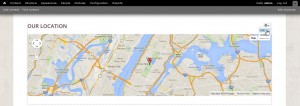
If there is no "Edit" option, but "Edit View/Configure Block," go to to the top menu "Content." In the "Type"
drop-down select "Map" and click "Filter." Once the necessary item is found, click on it to edit.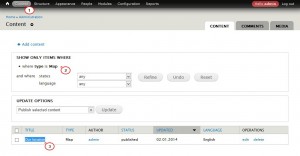
-
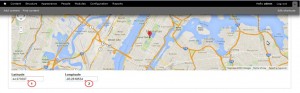
Scroll down to the Latitude/Longitude fields.
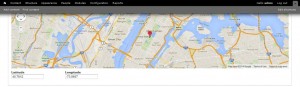
-
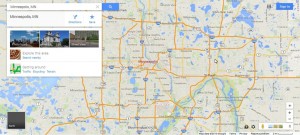
Open https://www.google.com/maps/ in a new tab of your web browser.
-
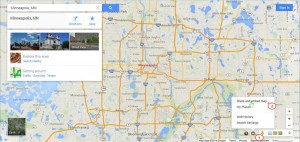
Enter your location in the “Search” field on the left.
-
Using the tools at the bottom right, select “Share and embed map.”
-
Copy the latitude/longitude in the window that is going to pop us and paste them into in the corresponding fields on your Drupal website.
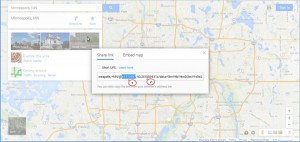
For instance, if the whole address is:
https://www.google.com/maps/place/Minneapolis,+MN/@44.970697,-93.2618534,11z/data=!3m1!4b1!4m2!3m1!1s0x52b333909377bbbd:0x939fc9842f7aee07
Copy 44.970697 for Latitude and -93.2618534,11 for Longitude.
-
Scroll up and change the rest of the fields to match your new location. When you are done, click “Save” at the bottom.
-
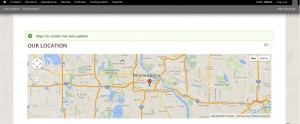
After saving the changes, you should see the new Google Map location on your “Contacts” page.
Feel free to check the detailed video tutorial below: