Language

  • English
  • Español
  • Russian

Top Menu

  • Live Chat
  • Submit a ticket
  • Sample Templates
  • Testimonials
  • Contact Us
 

Knowledgebase and documentation
If you have TEMPLATE-HELP.COM on your cardholder's statement and don't recognize it, please contact billing@template-help.com
  • Web templates
    • 3 Color Templates
      • Product Description
      • Tutorials
    • CSS Templates
      • Product Description
      • Tutorials
    • Dynamic Flash
      • Product Description
      • Tutorials
    • Dynamic Flash Photo Gallery
      • Product Description
      • Tutorials
      • Updates & Innovations
    • Flash Animated Templates
      • Product Description
      • Tutorials
    • Flash CMS Intro
      • Product Description
      • Tutorials
    • Flash Intro Templates
      • Product Description
      • Tutorials
    • Flash Templates
      • Product Description
      • Quick Start Guide
      • Tutorials
    • Dynamic SWISH Templates
      • Product Description
      • Tutorials
    • Full Package Templates
      • Product Description
      • Tutorials
    • Full Site templates
      • Product Description
      • Quick Guide
      • Tutorials
    • JS Animated
      • Product Description
      • Tutorials
    • PSD Templates
      • Product Description
      • Tutorials
    • Razor Templates
      • Product Description
    • Stretched Template
      • Product Description
      • Tutorials
    • SWISH Animated templates
      • Product Description
      • Tutorials
    • Swish Templates
      • Product Description
      • Tutorials
    • XML Flash Templates
      • Product Description
      • Tutorials
    • PRO templates
      • Product Description
    • Responsive web templates
      • Product Description
  • E-commerce Templates
    • Prestashop
      • Product Description
      • Quick Start Guide
      • Tutorials
      • Updates & Innovations
    • Magento
      • Product Description
      • Quick Guide
      • Tutorials
      • Updates & Innovations
    • OsCommerce
      • Product Description
      • Quick Guide
      • Tutorials
      • Updates & Innovations
    • VirtueMart
      • Product Description
      • Quick Guide
      • Tutorials
      • Updates & Innovations
    • ZenCart
      • Product Description
      • Quick Guide
      • Tutorials
      • Updates & Innovations
    • OpenCart
      • Product Description
      • Quick Start Guide
      • Updates and Innovations
      • Tutorials
    • CRE Loaded
      • Product Description
      • Tutorials
      • Updates & Innovations
    • E-Commerce Comparison
    • E-commerce templates compatibility table
  • CMS & Blog Templates
    • Wordpress
      • Product Description
      • Quick Guide
      • Tutorials
      • Updates & Innovations
    • Joomla!
      • Product Description
      • Quick Guide
      • Tutorials
      • Updates & Innovations
    • Drupal
      • Product Description
      • Quick Start Guide
      • Tutorials
      • Updates & Innovations
    • Mambo
      • Product Description
    • PhpBB
      • Product Description
      • Tutorials
    • Php-Nuke
      • Product Description
      • Tutorials
    • Tumblr templates
      • Tutorials
    • CMS Comparison
    • CMS Product versions compatibility
  • Corporate Design
    • Corporate Identity
      • Product Description
      • Tutorials
    • Icon Set
      • Product Description
      • Tutorials
    • Logo Set
      • Product Description
      • Tutorials
    • Logo Templates
      • Product Description
      • Tutorials
    • PowerPoint Templates
      • Product Description
      • Tutorials
  • Silverlight
    • Silverlight Templates
      • Product Description
      • Tutorials
    • Silverlight Intro
      • Product Description
  • Video Templates
    • After Effects Intros
      • Product Description
      • Tutorials
    • After Effects Logo Reveals
      • Product Description
      • Tutorials
    • VideoSmash
      • Tutorials
  • Facebook Layouts
    • Facebook Flash Templates
      • Product Description
      • Tutorials
    • Facebook HTML Templates
      • Tutorials
    • Facebook Reveal Template
      • Product Description
      • Tutorials
    • Updates & Innovations
 

Pre-Sale Questions

  • Pre-Sale Questions
    • Pre-Sale FAQ
    • After Sale Support
    • Copyright & Template Usage
    • Licensing Questions
  • Billing Questions
 

General Tutorials

  • Developer Tools
  • Hosting FAQ
  • Working with CSS
  • Working with Photoshop
  • Working with HTML
  • Working with Files
  • Working with Flash
  • Working with JQuery
  • Working with fonts
  • Working with XML Flash
  • Working with Swish
 

How to change a company name

  • Author: Mark Woods
  • Posted on: November 15, 2010
  • Relation: Layout
  • Complexity: Low
  • Tags: company, Joomla, logo, name, slogan
GD Star Rating
a WordPress rating system
 

This tutorial shows how to change logo in Joomla Joomla is an award-winning content management system (CMS), which enables you to build Web sites and powerful online applications. Many aspects, including its ease-of-use and extensibility, have made Joomla the most popular Web site software available. Best of all, Joomla is an open source solution that is freely available to everyone. 1.5 template. The template logo is an image so to change the company name we need to edit the image source file.

The source file is located in the template package > sources/psd folder. You’ll need Adobe Photoshop software to edit it.

Open the PSD file in Adobe Photoshop.
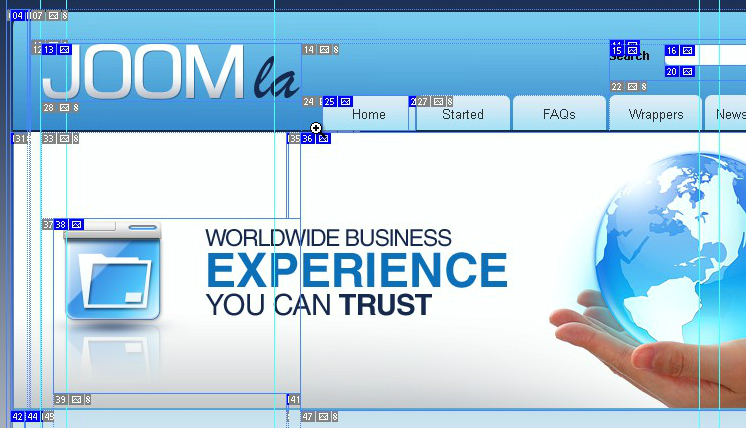
To change the logo text use the Text tool – available from the left tool panel.

When you are done editing text you can proceed to save your modifications. As you can see some parts of the image has blue borders, those are called slices. You’ll use the slices to save the modified parts of your design – logo in our case.

If you don’t see the slices you need to enable them. Go to View > Show > Slices from the top menu in Adobe Photoshop.

If you text is larger than the logo slice you can stretch the slice. Select the slice select tool from the toolbar and stretch the slice to the desired dimensions.

When you are done you can save your modified slice. Go to File > Save for web and devices. Select the logo slice and save it. Each slice will be saved as a separate image file.
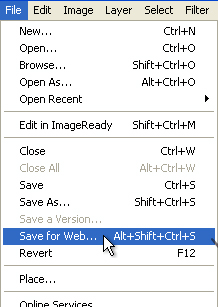
To learn more about working with slices please check the details video tutorial: How to save for web

When you are done saving the slices upload the saved images to your joomla/templates/theme###/images folder replacing the default ones. This way you’ll make your changes affect the website.

Feel free to check the detailed video tutorial on how to change company name in Joomla


How to change a company name, 5.0 out of 5 based on 1 rating
This entry was posted in Joomla, Joomla! Tutorials and tagged company, Joomla, logo, name, slogan. Bookmark the permalink.

Related posts:

  1. How to change the company name
  2. How to change the logo
  3. How to change the logo and company slogan
  4. How to change a logo
  5. How to change “Welcome to frontpage” text

Submit a ticket

If you are still unable to find a sufficient tutorial regarding your issue please use the following link to submit a request to our technical support team. We'll provide you with our help and assistance within next 24 hours: Submit a ticket

Copyright 2003-2012 Template-help.com All rights reserved.