
Just Host Web Hosting Help
File Manager - Copying and Moving Files
This article is part of our File Manager tutorial series. Please see the links below if you are looking for a different explanation of the File Manager.
- Accessing the File Manager
- Navigating the File Manager
- Uploading Files
- Creating, Removing, and Edtiting Files
- Copying and Moving Files
- Compressing Files into an Archive (GZip)
- Extracting Files from an Archive
You will need to have a basic understanding of how to navigate the File Manager in order to complete these tasks. If you are still unfamiliar with the File Manager and how to navigate it, check out our Navigating the File Manager article.
Copy or Move Files
- Login to cPanel and click File Manager.
- Choose to open Web Root and Show hidden files.
- Locate and select the files or folders you want to copy or move (Hold control to select multiple items or hold shift to select a group of items).
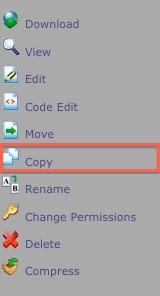
- With the appropriate files and folders selected, click the Copy icon or Move icon from the top menu. Alternatively, you can right-click on the selected files and folders and click on Copy or Move from the drop down menu, as pictured below.
- A popup box will appear confirming the final destination for your files. The default destination path for the copied or moved files to go will be the current folder you are in. Replace this with the appropriate destination path for the files to go.
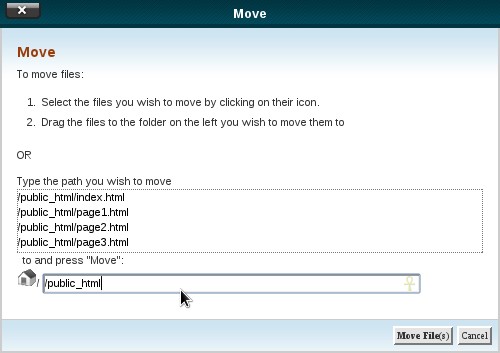
Note: The Copy and Move tools act very similarly. While the Move tool will remove the files from the directory (folder) they are being moved from and then place them in the new directory, the Copy tool will copy the files so that they exist in both the original and new directories.
 bookmark
 share
share
 E-mail
 Twitter
 Google Bookmarks
 Facebook
 MySpace
 Digg
Digg Reddit
 Delicious
 LinkedIn
 StumbleUpon
Recommended Help Content
This article will walk you through extracting compressed files using the File Manager. (updated 190 days ago)
This article will walk you through creating, removing, and editing files with the file manager. (updated 204 days ago)
This article will give a basic overview of the File Manager and explain how to access it. (updated 204 days ago)
Related Help Content
This article will walk you through navigating the File Manager. (updated 202 days ago)
This article will walk you through uploading files using the File Manager (updated 197 days ago)
There are many ways that you can transfer files and folder to and from your hosting account. We highly recommend using an FTP (File Transfer Protocol) program to quickly upload and download files. We (updated 394 days ago)
Learn how to see how many files you have on your account using the File Count tool in the cPanel. (updated 108 days ago)
This article will explain how to utilize GZip through the file manager. (updated 190 days ago)
Knowledgebase Article
 2,559 views
 tags:
tags:
2,559 views
tags:
The Legacy File Manager will allow you to manage almost everything about your files, you can use it to upload, download, edit the code, change permissions and more! (updated 936 days ago)
What is the Process Manager? How do I use the Process Manager? Why can I get to my cPanel but homepage does not display? (updated 1380 days ago)
This article will walk you through the steps to copying and renaming a database with phpMyAdmin. (updated 208 days ago)