
Just Host Web Hosting Help
Resetting the Password for an Email Account
You can easily change the password for an email account. This article will explain how to make this change.
Modifying the Email Password through Webmail
The person who uses this email account would typically use this method. They must already know the password to be able to change it.
- Login to Webmail.
- Click the Change Password button.
- In the box to the right of Password, type the new password for the email address.
- In the box to the right of Password (again) type the new password again.
- Click Change Password button.
- Your screen should refresh and you should receive a confirmation page. Congratulations! You've successfully changed your email account's password.
Modifying the Email Password through cPanel
- Login to your Just Host cPanel account.
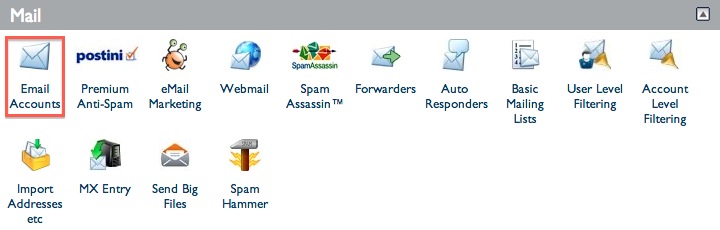
- Click the Email Accounts icon
- Click Change Password, to the right, of the appropriate email account.
- This will open the Change Mail Account Settings menu.
- Type your new password into the Password text box.
- Enter your password again in the Password (Again): text box
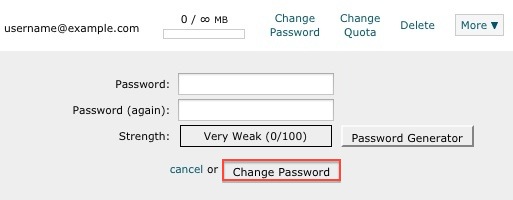
- Click the Change Password button to set the new password.
- Your screen should refresh and you should receive a confirmation page. Congratulations! You've successfully changed your email account's password.
If the user of the email account cannot change it via webmail (for example, they forgot their password), you can also change the email password via cPanel without knowing what the email password used to be.

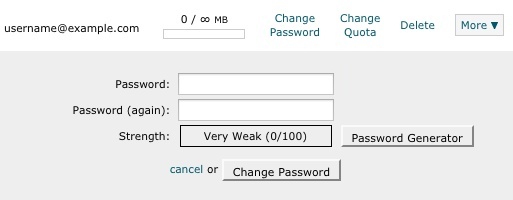
Note: The Strength Meter: will indicate the difficulty of the password. We highly recommend you use a strong password.
 bookmark
 share
share
 E-mail
 Twitter
 Google Bookmarks
 Facebook
 MySpace
 Digg
Digg Reddit
 Delicious
 LinkedIn
 StumbleUpon
Recommended Help Content
Learn how to create an email account associated with your domain name (updated 85 days ago)
We provide several programs to be able to check your email online. cPanel Mail section where Email Accounts icon is located Navigate to the Mail section inside cPanel. Click the Email Accounts icon. (updated 43 days ago)
How to access your email accounts from your web browser. Our webmail applications make a nice alternative to a desktop email client. (updated 135 days ago)
Related Help Content
Instructions on how to set up Webmail to redirect as a custom subdomain (updated 202 days ago)
How does a person change the Password, create an Autoresponder and setup Email Filtering on their individual email account without logging into the main account control panel? (updated 398 days ago)
Knowledgebase Article
 74,576 views
 tags: aging auto autoresponder filter filtering password responder
74,576 views
tags: aging auto autoresponder filter filtering password responder
This tutorial will show you how you can password protect parts of your website by password protecting the folder(s) on your account. (updated 383 days ago)
This article will explain how to change the password for a database in the event that the original password is lost. (updated 209 days ago)
How do I use webmail? (updated 135 days ago)
General Instructions on how to use the spam folder with webmail (updated 212 days ago)
Can I log directly into the webmail client of my choice? (updated 204 days ago)