
Just Host Web Hosting Help
FTP Setup Using CuteFTP Home Version 8.2
Problem:
Summary of Issue:
How do I setup CuteFTP 8.2 for FTP?
Solution:
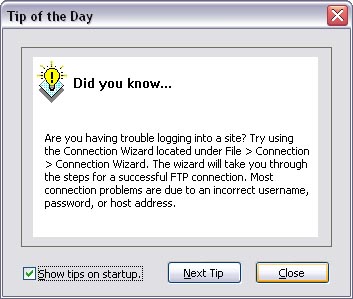
- Open up CuteFTP. If it has been used before and the "Show tips on startup." hasn't been unchecked,
then you will see the Tip of the Day.
- If the "Show tips on startup." has been unchecked, then select File | Connect | Connection Wizard.
Otherwise, if this is the first time opening up CuteFTP, the following screen for the Connection Wizard shows below.
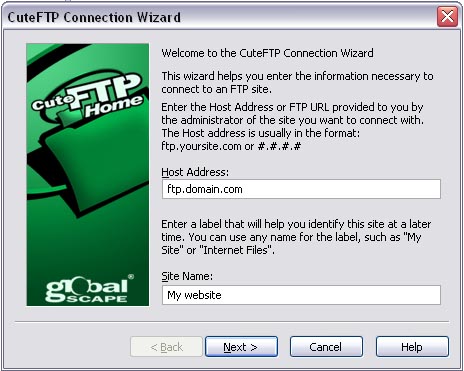
- The Host Address: should be ftp.domain.com
The Site Name: can be anything you'd like such as My website
Click Next >
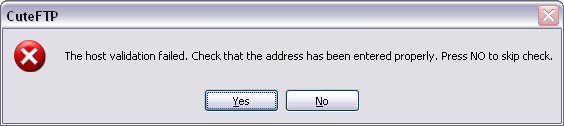
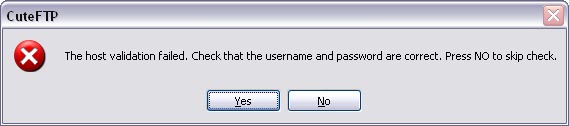
- CuteFTP does a host validation check to make sure a valid host has been entered.
If it detects the host as being invalid, then you'll get the above message. You can select Yes to go back and check your Host Address: again or select No to continue. If you select Yes and the Host Address is correct, this could be an indication that the DNS hasn't been changed to point to our name servers yet or hasn't fully propagated.
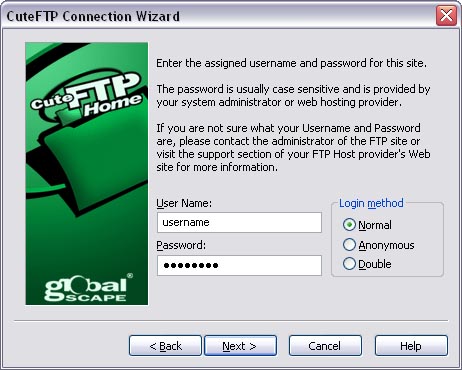
- Clicking No takes you to the screen asking for your User Name: and Password
Please enter your cPanel username and password or the full username@domain.com and password which you have created in FTP Accounts.
Click Next >
- CuteFTP tries to connect to the Host Address: with the User Name: and Password: which have been entered.

- If it can't connect because the Host Address: was entered incorrectly, then this warning will show:
- If it can't connect because the User Name: or Password: was entered incorrectly, then this warning will show:
- Yes can be pressed to return to check the information entered and make corrections. Or, No can be selected to continue to the next step.
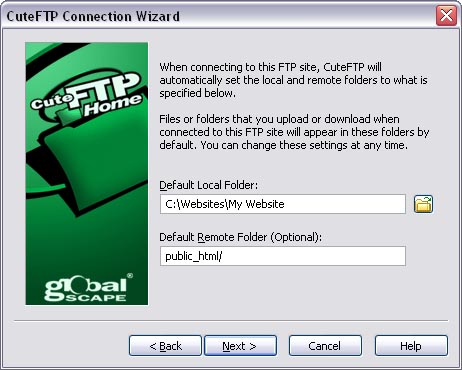
Enter in the Default Local Folder: or click the folder icon to browse to a folder. A new folder can also be created within that icon, and then selected.
- If the User Name: from the previous step is the cPanel username and not one created in FTP accounts, then the Default Remote Folder (Optional): should be public_html
- If the User Name: from the previous step is in the format of username@domain.com and is one that was created in FTP Accounts, then leave the Default Remote Folder (Optional): empty.
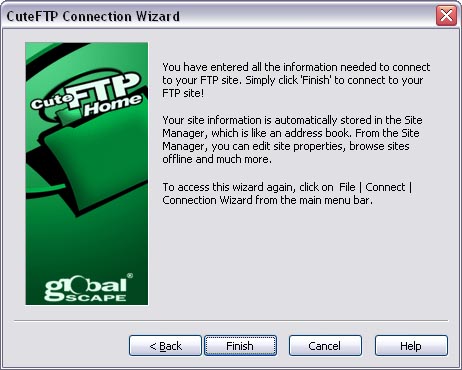
CuteFTP will now display a screen saying that all of the information has been entered. Click Finish
CuteFTP will once again try to connect using the settings which have been entered.
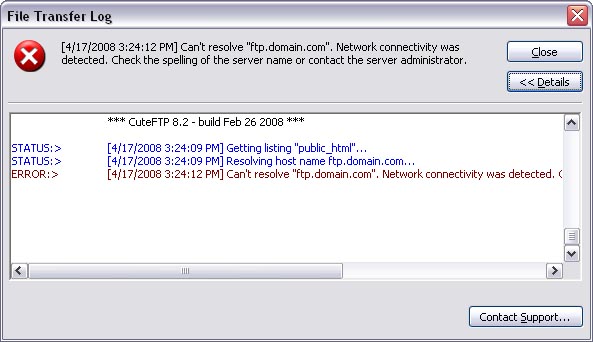
- If it can't connect to the Host Address:, a message like this will appear:
- Details >> can be pressed to see the status and where the program is encountering the error at.
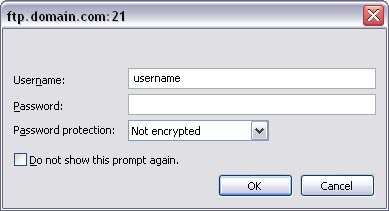
- If CuteFTP is able to resolve the host name, but it's unable to connect because of an incorrect username or password, then this error will display:
- Go ahead and enter in the correct Username: and Password: and click OK
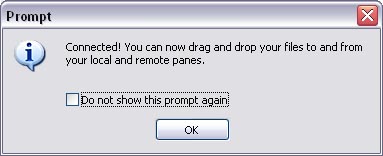
A successful connection will appear like this:
Additional Notes:
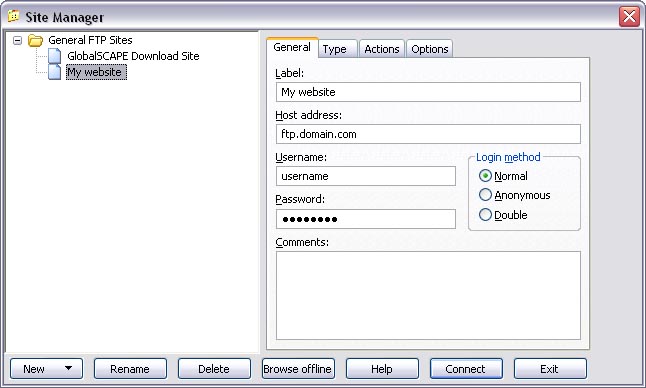
- Sometimes the Site Manager is displayed upon opening CuteFTP or after closing the Tip of the Day
- This can also be opened by choosing Tools | Site Manager | Display Site Manager
- Make sure the information is correct and press Connect.

Knowledgebase Article
 61,226 views
 bookmark
 share
share
 tags: connect cute ftp set settings setup upload
(updated 400 days ago)
tags: connect cute ftp set settings setup upload
(updated 400 days ago)
61,226 views
bookmark
share
 E-mail
 Twitter
 Google Bookmarks
 Facebook
 MySpace
 Digg
Digg Reddit
 Delicious
 LinkedIn
 StumbleUpontags: connect cute ftp set settings setup upload
(updated 400 days ago)
StumbleUpontags: connect cute ftp set settings setup upload
(updated 400 days ago)
Recommended Help Content
I would like to use FileZilla how do I go about the setting it up and connecting to my site? (updated 400 days ago)
Knowledgebase Article
173,656 views
tags: client configure file filezilla ftp party set settings setup zilla
173,656 views
tags: client configure file filezilla ftp party set settings setup zilla
This article will instruct you on obtaining and installing the FTP client, CuteFTP. (updated 164 days ago)
How do I connect and upload via FTP with WS_FTP? (updated 1375 days ago)
Related Help Content
This article will instruct you on configuring a connection using the FTP client, CuteFTP. (updated 164 days ago)
How do I connect and upload via FTP with Dreamweaver MX? (updated 1388 days ago)
How do I connect and upload via FTP with Adobe GoLive? (updated 1388 days ago)
How do I publish my website using Microsoft Publisher 2007 (updated 1108 days ago)
How do I connect and upload via FTP with Dreamweaver MX 2004? (updated 881 days ago)
Publish with NVU site builder (updated 1356 days ago)
How do I create a FTP account, and quickly set it up in my client? (updated 536 days ago)