
Just Host Web Hosting Help
Restore MySQL databases using the Site Backup & Restore tool
Summary
To restore your MySQL databases you can use the Site Backup and Restore tool, found in the Files category of your cPanel.
Restore a MySQL Database
- Login to your Just Host Control Panel.
- Click the Site Backup & Restore tool.
- Select the "Restore" tab.
- Click "Restore MySQL".
- Choose from one of the available dates.
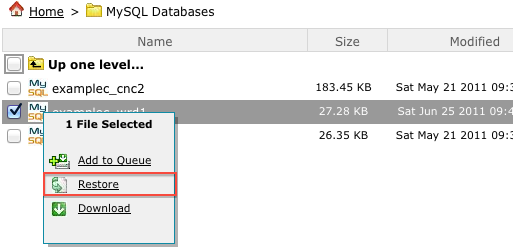
- Check the database you would like to restore.
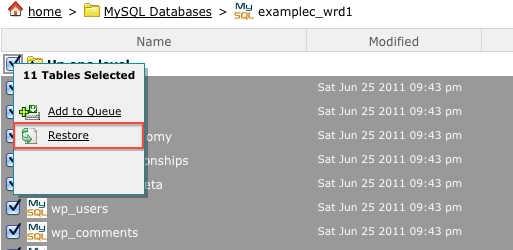
- Select the desired tables; you can use the top-most box to select all of them at once.
- In the popup menu choose the option "Restore."
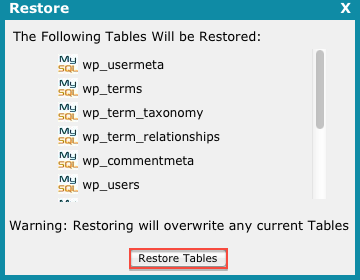
- You will be asked to confirm your restore choices, with a list of the table(s) being restored.


Knowledgebase Article
 20,311 views
 bookmark
 share
share
 tags: backup database mysql restore site
(updated 383 days ago)
tags: backup database mysql restore site
(updated 383 days ago)
20,311 views
bookmark
share
 E-mail
 Twitter
 Google Bookmarks
 Facebook
 MySpace
 Digg
Digg Reddit
 Delicious
 LinkedIn
 StumbleUpontags: backup database mysql restore site
(updated 383 days ago)
StumbleUpontags: backup database mysql restore site
(updated 383 days ago)
Recommended Help Content
How to restore MySQL databases using the Site Backup & Restore tool (updated 610 days ago)
How to backup all of your MySQL databases using the Site Backup & Restore tool (updated 744 days ago)
How to backup a MySQL database using the Site Backup & Restore tool (updated 383 days ago)
Related Help Content
How to restore PostgreSQL databases using the Site Backup & Restore tool (updated 383 days ago)
How to backup PostgreSQL databases using the Site Backup & Restore tool (updated 383 days ago)
Site Backup & Restore tool displays unexpected dates. (updated 803 days ago)
How to restore a backup created using the Site Backup & Restore tool (updated 744 days ago)
How to restore individual files or folders with the Site Backup & Restore tool (updated 744 days ago)
How to restore Email Filters the Site Backup & Restore tool (updated 383 days ago)
How to restore Email Messages the Site Backup & Restore tool (updated 744 days ago)