
Just Host Web Hosting Help
Backup website files using the Site Backup & Restore tool
Problem:
How do I backup my website files of my Just Host account?
Solution:
To backup your files and folders you can use the Site Backup and Restore tool, located in the Files category within your cPanel.
The tool will then begin backing up your files. Once complete, you'll be given a dialog with a link to download your files. We recommend doing this periodically to maintain archives of your account.
Login to your Just Host account.
Click the Site Backup & Restore tool.
Select the "Backup" tab.
Click "Website Files"
Choose the date of the backup you wish to use
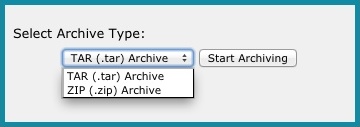
Choose if you will use "TAR (.tar)" or "ZIP (.zip)" archive
Click "Start Archiving".


Knowledgebase Article
 28,834 views
 bookmark
 share
share
 tags: files restore site web website
(updated 744 days ago)
tags: files restore site web website
(updated 744 days ago)
28,834 views
bookmark
share
 E-mail
 Twitter
 Google Bookmarks
 Facebook
 MySpace
 Digg
Digg Reddit
 Delicious
 LinkedIn
 StumbleUpontags: files restore site web website
(updated 744 days ago)
StumbleUpontags: files restore site web website
(updated 744 days ago)
Recommended Help Content
How to restore the website files using the Site Backup & Restore tool (updated 744 days ago)
How to restore individual files or folders with the Site Backup & Restore tool (updated 744 days ago)
How to restore a backup created using the Site Backup & Restore tool (updated 744 days ago)
Related Help Content
How to backup PostgreSQL databases using the Site Backup & Restore tool (updated 383 days ago)
How to restore PostgreSQL databases using the Site Backup & Restore tool (updated 383 days ago)
How to restore Email Filters the Site Backup & Restore tool (updated 383 days ago)
How to restore MySQL databases using the Site Backup & Restore tool (updated 610 days ago)
How to restore Email Messages the Site Backup & Restore tool (updated 744 days ago)
How to backup Email Filters the Site Backup & Restore tool (updated 383 days ago)
How to backup all of your MySQL databases using the Site Backup & Restore tool (updated 744 days ago)