
Just Host Web Hosting Help
Replacing Forms and Hit Counters That Use FrontPage Extensions
Replacing Forms and Hit Counters That Use Front Page Extensions
With support for front page extensions now gone you may want to find alternatives to email forms and the counters that are native to front page. This article explains some ways to replace the forms and hit counters.
Replacing Forms
If you used an email form with front page extensions you have a few options for replacing the form.
- Use the JustMail script availible through the CGI center of your Just Host account.
- Use a 3rd party service to create the form.
- Program your own custom form.
- Use an alternative site builder such as weebly to create a new site. See https://my.Justhost.com.com/hosting/help/frontpage-alternatives for more details.
Replacing Form Code With JustMail Or A 3rd Party Script
If you choose to use the JustMail script from the CGI center or use a 3rd party to make the form you may find that you will need to replace the existing form code in your site. The specifics of the process vary from site to site but here are the general steps.
Obtaining the Code from the CGI Center
If you are using a 3rd party to make the form they should provide the code for you. If you already have the code you can skip these steps and go straight to the "Pasting The Code Into Your Site" section.
- Log into your Just Host account.
- Click the hosting link near the top.
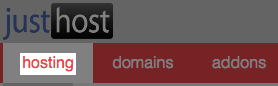
The hosting link. - Click the cpanel link under hosting.
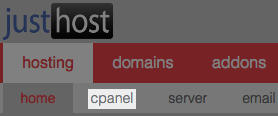
The cpanel link. - On the cpanel go to the group of icons labled Software/Services.
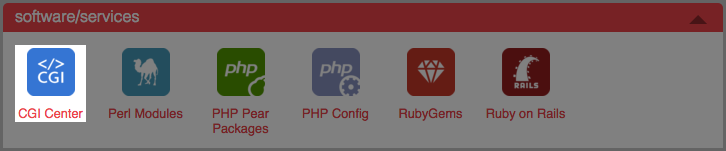
The Software/Services group of icons with CGI Center. - Click on CGI Center.
- Click on the JustMail link.

The JustMail link inside the CGI Center. -
Copy the code block on the JustMail page to your systems clipboard. The code will look something like this:
                      <form action="http://www.Justhost.com/justmail" enctype="multipart/form-data" method="POST">

                        Name: <input type="text" name="Name"><br>

                        Email: <input type="text" name="mailfrom"><br>

                        Street Address: <input type="text" name="StreetAddress"><br>

                        City: <input type="text" name="City"><br>

                        Zip: <input type="text" name="Zip"><br>

                        Phone: <input type="text" name="Phone"><br>

                        <input type="hidden" name="sendtoemail" value="webmaster@example.com"><br>

                        <input type="submit" value="Send Email">

                      </form>
Pasting The Code Into Your Site
Follow these steps to paste the code you want to use into your site.
NOTE: It is strongly recommended that you make a backup copy of your site before attempting these changes.
- Open your website in Front Page
- In the Folder List on the right side, double click on the file that has the form you wish to replace. In our example we use contact.htm
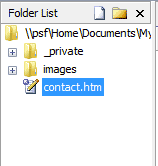
The folder list in frontpage 2003. - Once the file is open go to the bottom of the window and click the code button to make the site code visible.
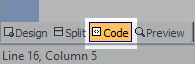
The code view button. - In the code view find the code for the form. In our example the form code starts on line 11.

An example of the front page form code. - Replace everything from "<form" to "</form>" with the code from the JustMail page.
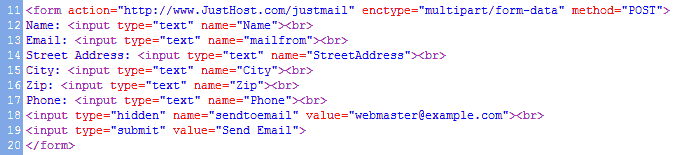
The new form code. - In the new form code find the line that says "
<input type="hidden" name="sendtoemail" value="webmaster@example.com">" replace webmaster@example.com with the email address you would like the form to send to.
The email address the form will send to. - Save the file.
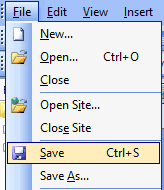
The file menu with the save command -
Publish the website using FTP
- Go to the file menu and select Publish Site.
- Remote Web Server type: should be set to FTP.
- Remote Web site location: should be set to ftp://ftp.example.com substitute example.com for your domain.
- FTP directory: Should normally be set to /public_html/ if you are publishing to the main domain on your account. If you are publishing to an addon domain, or subdomain you need to enter directory path the domain is assigned to.
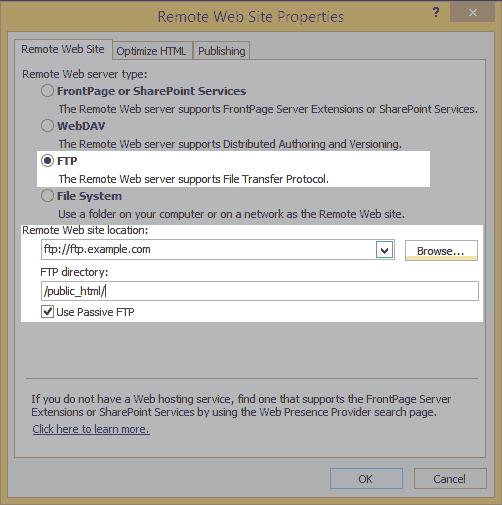
The Front Page FTP settings screen. - Once you have entered in all the information click OK.
- The next screen will ask you to enter a username and password. Enter your Just Host cPanel username and password.
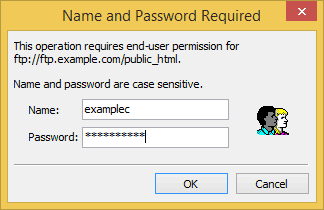
The FTP username and password window. - You will be taken to the FTP window. In the lower left corner click the Publish Web Site button. The changes should then be uploaded to the server.
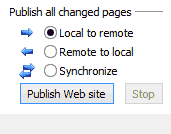
The change should now be finished. Check your site to make sure the form is working. Then you can also check the customization options on the JustMail page in the cPanel.
Replacing Hit Counters
Instead of using a hit counter on your site, you can use more sophisticated tools that are available in the cPanel. AwStats and Webalizer both record data about your site traffic and will generate reports for you to see. The following links will provide you more information on these programs.
https://my.Justhost.com.com/hosting/help/stats 4,128 views
 bookmark
 share
share
 E-mail
 Twitter
 Google Bookmarks
 Facebook
 MySpace
 Digg
Digg Reddit
 Delicious
 LinkedIn
 StumbleUpon
 tags: alternatives counters forms frontpage mail
(updated 164 days ago)
tags: alternatives counters forms frontpage mail
(updated 164 days ago)