
Just Host Web Hosting Help
Setup Sitelock FTP
Overview
This article explains how to setup a SiteLock FTP account. You must first create an FTP account for SiteLock to use. Then give SiteLock the settings for the FTP Account.
Creating an FTP Account
These steps will explain how to create the FTP account for SiteLock.
- Under the hosting tab, click the FTP link.
-
On the FTP Manager fill out the form to create a new FTP account.
- Login: This will be the login used by SiteLock, please note it always includes @yourdomain.com at the end of the username.
- Password: This will be the password used by SiteLock.
- Directory: This will be the directory of the website you have setup for SiteLock. If it is your main site you can use public_html. If it is an addon domain you need to use the directory path to the addon domain.
- Quota: You can leave this set to unlimited for SiteLock.
- After the Form is filled out click the Create FTP Account button.
Connecting SiteLock to the FTP Account
To connect SiteLock to the FTP account you need to go to your SiteLock dashboard and enter the FTP settings.
- Click the Addons tab at the top.
- Click on SiteLock
- On the SiteLock page click on View SiteLock Dashboard
-
In the SiteLock Dashboard click on the Settings link on the left.
Sitelock Settings link -
Click on Download Settings.
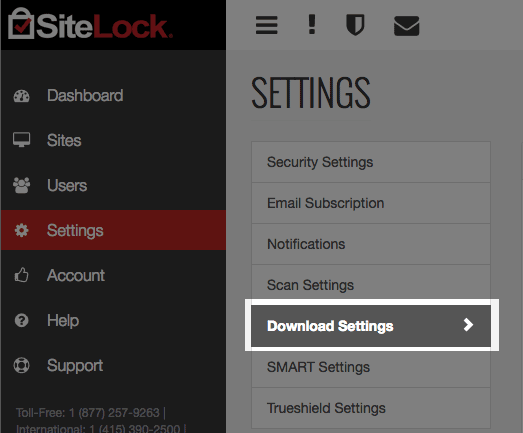
Sitelock Download Settings link -
Enter the information for your FTP Account:
- Method for File Transfers: FTP
- FTP host address: ftp.yourdomain.com Example: If your domain was example.com you would use ftp.example.com.
- (S)FTP Port Number: 21
- Root Directory: Leave this empty.
- User ID: The FTP username you created including the @domain.com ending.
- Password: The password for the FTP account you created.
- Select a speed for FTP file downloads: Leave this at the default.
- Maximum Download Time: 90
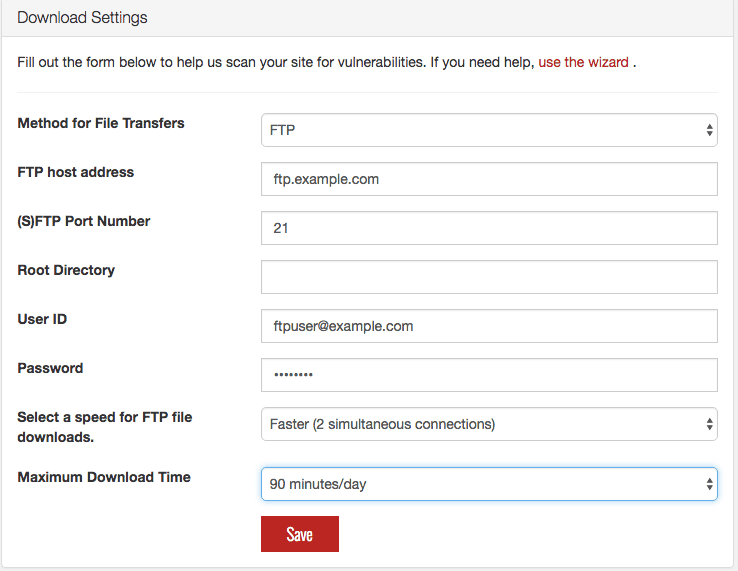
Sitelock FTP Settings - Click Submit.
 bookmark
 share
share
 E-mail
 Twitter
 Google Bookmarks
 Facebook
 MySpace
 Digg
Digg Reddit
 Delicious
 LinkedIn
 StumbleUpon
Recommended Help Content
This article explains the steps to set up an email account on your domain.
How to use use the FTP Account tool to create additional FTP Accounts. This is useful for granting FTP access to your account without giving anyone your cPanel password.
Video "How-to" Tutorial
 718,562 views
 tags: account accounts cpanelutilities ftp login publish upload
718,562 views
tags: account accounts cpanelutilities ftp login publish upload
This article explains how to publish your site through FTP on Dreamweaver 2014
Related Help Content
This article is an introduction to SiteLock
I would like to use FileZilla how do I go about the setting it up and connecting to my site?
Knowledgebase Article
543,751 views
tags: client configure file filezilla ftp party set settings setup zilla
543,751 views
tags: client configure file filezilla ftp party set settings setup zilla
This article will explain the process of verifying a domain and account information for a SiteLock account.
This article will explain how and when to contact SiteLock for support.
This article will explain the benefits of SiteLock for small businesses.
This article will explain what to do when SiteLock finds a vulnerability.
This article will explain how to order SiteLock
This article will explain how to install the SiteLock Trust Seal.