Sometimes it is necessary to reinstall the Magento engine. This should be done, for example, when you are trying to install the template and the sample data after the Magento engine installation. In order to reinstall the Magento engine and …
In case you already installed the template and the engine and you need to install the sample data please do the following: – open your database with the PhpMyAdmin tool or some other database management tool and drop all tables …
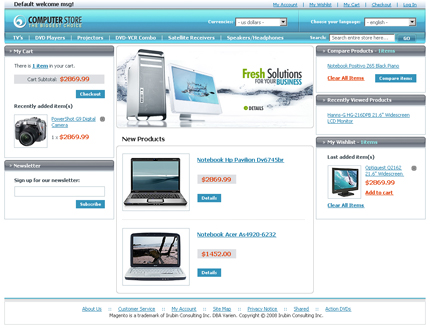
The Magento eCommerce platform is an open source eCommerce web application that was launched in March 2008 and reached 450,000 downloads by September 2008, making it the fastest growing eCommerce platform on the Internet.
Magento provides lots of useful shop maintenance features, among which are site management, marketing and promotion tools, international support, useful payment, checkout and shipping features, customer service features and much more.
Magento Theme Live Demo
Download Free Magento Theme
In order to change the default Magento welcome message you should: 1. Enter the Magento admin panel. To do this, please type “admin” after your domain name in the browser address bar 2. Click the “System” tab 3. Select the …
In case you need to edit fonts in the Magento store you should follow the steps below: 1. All the modifications should be done in the “/skin/frontend/blank/themexxx/css/styles.css” file 2. Download this file to your computer and open it with your …
In order to change the logo in the Magento store please use the following instruction: 1. Open “skin/frontend/blank/themeXXX/images” folder. The actual name of the dummy “themeXXX” folder depends on your template. 2. You can see the “logo.gif” file right here. …
In order to add a new content page to your Magento store you should follow the steps below: 1. Log in to your Magento admin panel by typing “admin” after your domain name in the browser address bar 2. Select …
All the main categories are displayed on the front end as a horizontal menu. In order to add a new one you should follow the steps below: 1. Enter the Magento admin panel. To do this, type “admin” after your …
In order to add a simple product in a Magento store, do the following: 1. Enter the Magento admin panel 2. Go to “Catalog” tab 3. Then “Manage Products” 4. Click the “Add Product” button 5. Select your attribute set …
If you need to protect product images with a watermark please do the following: 1. Log in to the Magento admin panel 2. Click the “System” tab 3. Then select “Configuration” 4. Now, open the “Design” page 5. And open …
In order to manage polls in your Magento store please do the following: 1. Open the admin panel, type “admin” after your domain name in the browser address bar. 2. Go to the “CMS” tab 3. Click the “Poll Manager” …
1. Log in to your Magento admin panel. 2. At the top of the screen you can see the warning message. It usually appears right after the Magento installation as all Magento configuration settings are set to default. 3. In …
In case you want to change the page content and layout, please do the following: 1. Open the Magento admin panel. 2. Select the “CMS” tab 3. Then click “Manage Pages”. You are on the “Manage Pages” screen. Here you …
For creating a configurable product you should follow the next steps: 1. Log in to your Magento admin panel 2. Select the “Catalog” tab 3. Click “Manage Products” 4. And then click the “Add Product” button to add a new …
For editing the product listing layout please follow the steps below: 1. Open the Magento admin panel 2. Select the “System” tab 3. Then click the “Configuration” menu item 4 Click the “Catalog” menu 5. Then open the “Frontend” tab …
For changing the administrator password you should: 1. Log in to your Magento admin panel 2. Select the “System” tab 3. click the “My Account” menu item 4. Here you can see the fields where you can enter your admin …