
Just Host Web Hosting Help
Creating an email account in Mail (Mac Mail)
If you are using a Mac, you can manage your mail through the Mac based email application Mail; this application is also known as "Mac Mail".
- Select the 'Mail' menu.
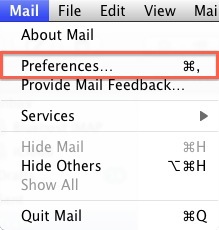
- Select Preferences.
- Click on the Accounts tab.
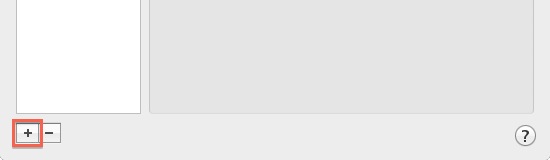
- On the Accounts window, click the + sign.
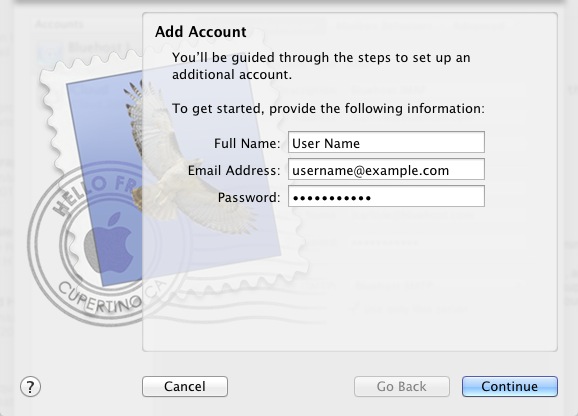
- Please enter your name, as you want it to appear on your outbound E-mail messages.
- Please type your E-mail address.
- Enter your E-mail password.
- Click the Next button.
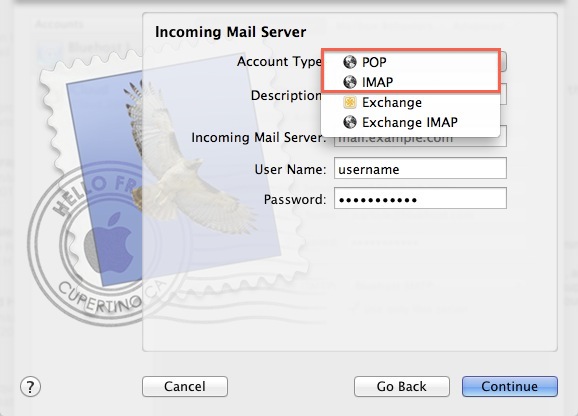
- Please choose your account type. You may select either POP or IMAP. Click here for an explanation on the differences between POP3 and IMAP.
- Give this account a description for quick reference.
- Please enter mail. followed by your domain name as the Incoming and Outgoing mail server.
- Enter your E-mail password.
- Click Next.
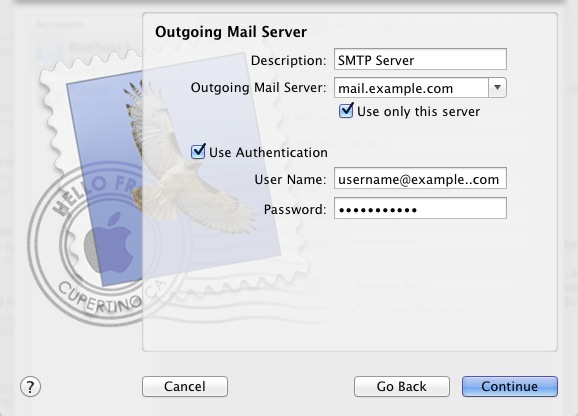
- Please give your Outgoing Mail Server a description.
- The Outgoing Mail Server is the same as your incoming mail server. Again, this will be something like mail.example.com
- Be sure that the Use Authentication box is checked.
- Enter your E-mail address for the User Name.
- Please type in your E-mail password.
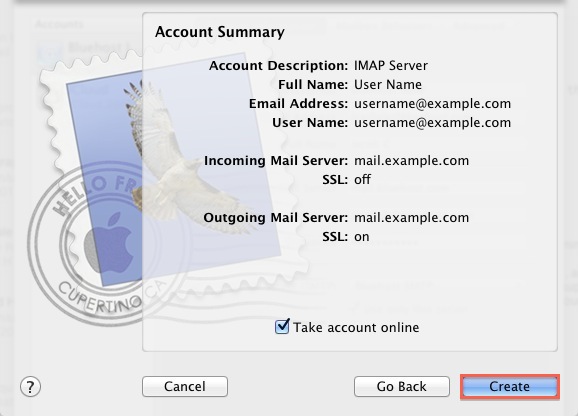
- Click the Next button.
Removing an Email account
WARNING: Removing an account in
Mail will permanently delete its mailboxes, messages, notes, and to do items. If you want to keep those, be sure to copy them to an On My
Mailbox before deleting the account.
Exchange, IMAP, and MobileMe accounts store their mailboxes and messages on the server; deleting these account types in Mail will not permanently delete messages from the server. However, if you are not completely certain that your account is one of those types, be sure to copy the mailboxes and messages you want to keep into an On My Mailbox, or save individual messages manually by selecting them and choosing Save As from the File menu.
Apple's Basic Troubleshooting Guide
Apple's Email Configuration Guide (see Removing an email account)
 bookmark
 share
share
 E-mail
 Twitter
 Google Bookmarks
 Facebook
 MySpace
 Digg
Digg Reddit
 Delicious
 LinkedIn
 StumbleUpon
Recommended Help Content
Where do I Add, Delete and Manage Email Accounts? (updated 733 days ago)
Knowledgebase Article
 174,361 views
 tags: accounts add change client configure delete email imap macmail mail mailbox manage outlook password ports thunderbird
174,361 views
tags: accounts add change client configure delete email imap macmail mail mailbox manage outlook password ports thunderbird
How to setup an email account using Apple's Mail Application. (updated 209 days ago)
How to add a Just Host email account to Entourage (Mac OS X)? (updated 196 days ago)
Related Help Content
All of my email folders are missing. How can I get them to show up? (updated 986 days ago)
Learn how to check your email accounts from within Yahoo! Mail. This tutorial will show you how to setup a POP account in Yahoo! Mail. (updated 936 days ago)
How Do I Subscribe to IMAP Folders in Mac OS X Mail Client? (updated 630 days ago)
2003 for Windows. While it can be used for other versions of Outlook, some screens and steps might vary. Select the 'Tools' menu. Select Accounts. Click on the "Add a new E-mail account" op (updated 209 days ago)
Windows Live Mail combines the ease of use of Outlook Express, with the speed of Windows Live. This tutorial will show you how to setup your email account in Windows Live Mail. (updated 936 days ago)
How to batch email in Dada Mail. (updated 946 days ago)
How to setup an email account using Mozilla Thunderbird, Thunderbird is a great cross-platform (Windows, Mac OS and Linux) free email client. (updated 254 days ago)