
Just Host Web Hosting Help
How to Setup Outlook 2013
This guide will show step-by-step instructions for setting up email on Outlook 2013 for Windows. While it can be used for other versions of Outlook, some screens and steps might vary.
Adding a new account:
- Select the 'File' menu.
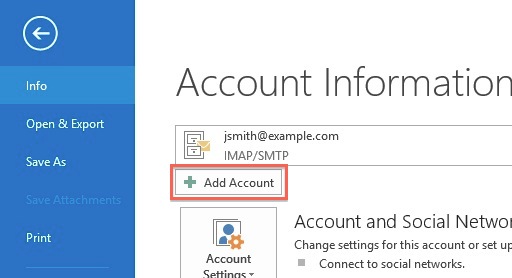
- Select Info.
- Click the "Add Account" button.
- Choose "Manual setup or additional server types" .
- Click Next.
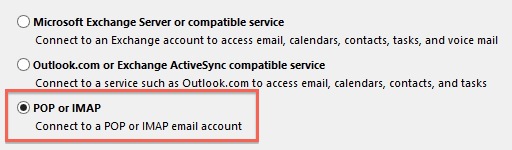
- Choose "POP or IMAP" .
- Click Next.

Account Settings:
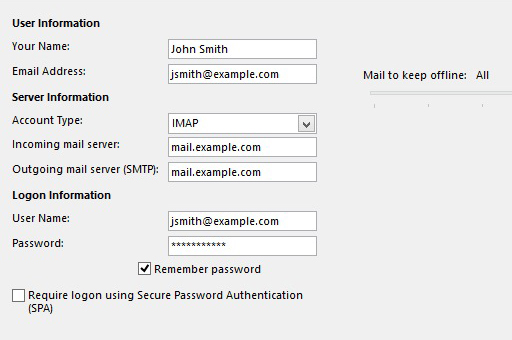
- Please enter your name as you want it to appear on your outbound email messages.
- Please type your email address.
- Please enter your Incoming Mail Server. This can be found in the email section of the cPanel under Configure Mail Client.
- The Outgoing Mail Server is the same as your Incoming Mail Server.
- Enter your email address for the User Name.
- Enter your email password.
More Settings
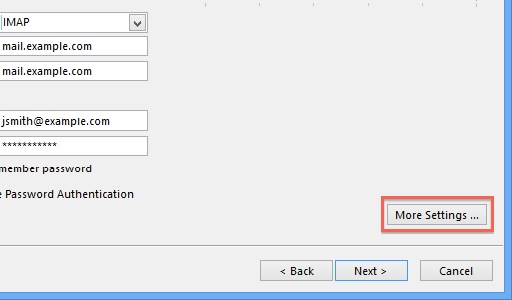
- Click the More Settings button.
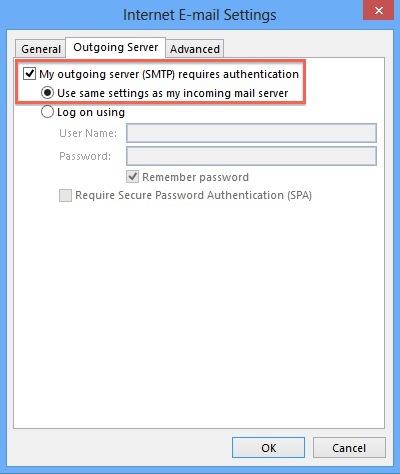
- Click the Outgoing Server tab.
- Click the "My outgoing server (SMTP) requires authentication" checkbox.
- Make sure that it is using the same settings as your incoming mail server.
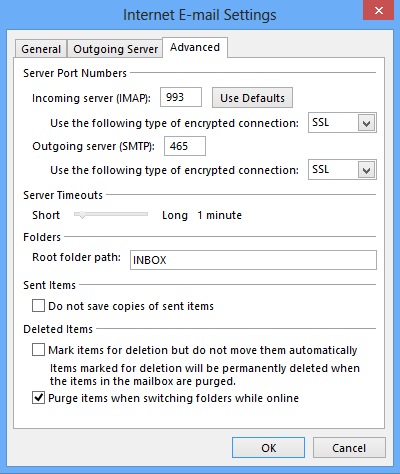
- Click the Advanced tab.
- If you are using POP3 with SSL, please enter 995 for your port. Otherwise leave the port at 110.
- If you are using POP3, you may choose when messages are removed from the server.
- If you are using IMAP with SSL, please enter 993 for your port. Otherwise leave the port at 143.
- If you are using SMTP with SSL, please enter 465 for your port. Otherwise change the port to 26.
- Click the OK button.
- Click Next on the E-mail Accounts window.
- Click the Finish button.
Completing the Setup
You should now be able to send and receive email.
Knowledgebase Article
 32,888 views
 bookmark
 share
share
 tags: email imap outlook pop
(updated 92 days ago)
tags: email imap outlook pop
(updated 92 days ago)
32,888 views
bookmark
share
 E-mail
 Twitter
 Google Bookmarks
 Facebook
 MySpace
 Digg
Digg Reddit
 Delicious
 LinkedIn
 StumbleUpontags: email imap outlook pop
(updated 92 days ago)
StumbleUpontags: email imap outlook pop
(updated 92 days ago)
Recommended Help Content
Configuring your email client: Outlook Express. (updated 199 days ago)
Knowledgebase Article
130,427 views
tags: configuration configure email express imap outlook pop setup
130,427 views
tags: configuration configure email express imap outlook pop setup
How to setup an email account using Microsoft Outlook 2007 (updated 2 days ago)
How to setup an email account using Microsoft Outlook 2010 (updated 2 days ago)
Related Help Content
Configuring your email client: Outlook 2003 (updated 2 days ago)
You can try sending the email on port 26, which is an alternate SMTP port and see if that works for you. For outlook: (updated 92 days ago)
All of my email folders are missing. How can I get them to show up? (updated 987 days ago)
How do I add my Just Host email account to Outlook 2002? (updated 560 days ago)
Microsoft Outlook supports third party plugins (aka add-ins) to allow for such things as email virus scanning. Such plugins can cause problems, such as causing Outlook to time-out when trying to retri (updated 1417 days ago)
How to setup an email account using Microsoft Outlook 2011 (updated 253 days ago)
There are many third-party E-mail programs that can be used to connect to your E-mail accounts from remote computers. The most common E-mail programs, called Clients, are Outlook, Mac Mail, and Mozil (updated 210 days ago)
How do I add my Just Host email account to Outlook Express 6.0? (updated 560 days ago)